For singers
Learn the music.
Open the app and everything for this week is there: the score, the tracks, the notes. Nothing to dig out of an email.
Sheet music
Every score on every singer’s phone, the moment it’s uploaded.
Upload a PDF once and it’s in the music list for the whole group. Read it page by page or scroll, pinch to zoom, and tap to turn pages when your hands are busy. Add a title and arranger so it’s easy to find later.
How to use 5 guides
Upload a score
Managers and above
- Open the group and tap Music.
- Tap Add song.
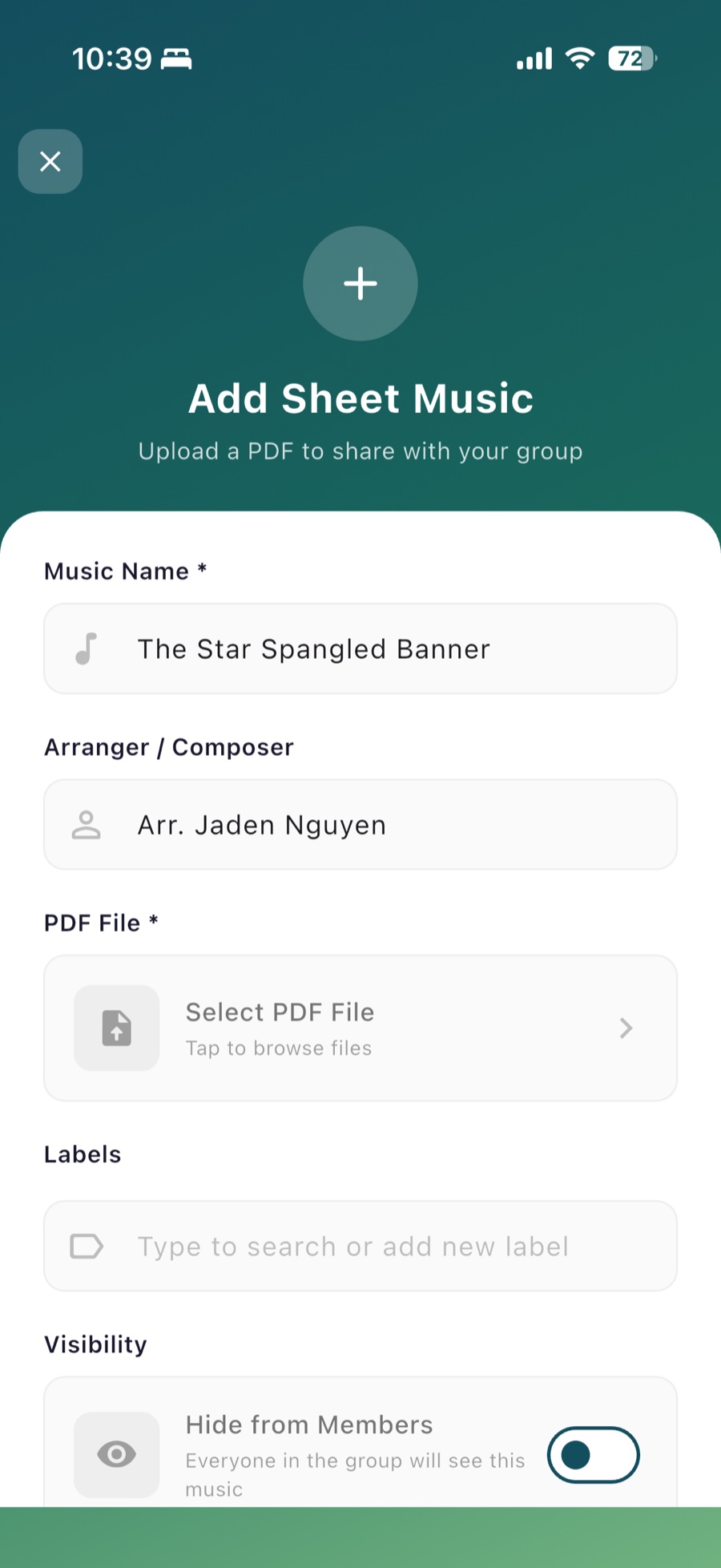
- Tap Select PDF file and choose the PDF.
- Check the Song Name, which fills in from the file name, and add the Arranger / Composer.
- Add any Labels you use to sort the list.
- Tap Add song. It is now in every singer’s list.
Only owners and admins see the Hide from members switch, which keeps a song out of singers’ lists until you unhide it.
Read a score
- Open the group and tap Music.
- Tap a song to open it, or search by name or arranger first.
- Scroll down to move through the pages.
- Pinch to zoom in on a passage, and pinch out to see the whole page.
- Tap the middle of the page to hide or show the bars.
In a web browser, use the + and − buttons on the page instead of pinching.
Bookmark a spot and jump back to it
- Open the song and scroll to the place you want to keep.
- Tap the bookmark icon at the top (Bookmarks), then Add bookmark.
- Give it a Name if you like, and check the Pages: one page, or a range like 3-5 for a whole section.
- Tap Add bookmark. The list shows every bookmark in page order.
- Tap a bookmark to jump straight to that spot, or type in Search bookmarks to find one by name or page number.
Bookmarks are yours and stay on this device. Tap the pencil next to one to rename it, change its pages or delete it.
Turn pages with a tap
- Open the song and tap the three dots at the top right (More options).
- Under Reading, switch on Tap to turn pages.
- Tap the right edge of the page for the next page and the left edge to go back.
- For tall pages, set Page turns to Half page or By system.
- Switch on Sheet music only to hide the audio player while you read.
A Bluetooth page-turn pedal or a keyboard’s arrow keys turn pages the same way.
Edit the title, arranger and labels
Managers and above
- In Music, tap the three dots next to the song.
- Tap Edit details.
- Change the Song Name, Arranger / Composer or Labels.
- To swap the file, tap Select new PDF under Replace PDF.
- Tap Save, or Save & replace PDF if you chose a new file.
Inside the reader, Edit details is under More options.
Learning tracks
Upload whatever tracks your singers need, and they’ll find them right next to the music.
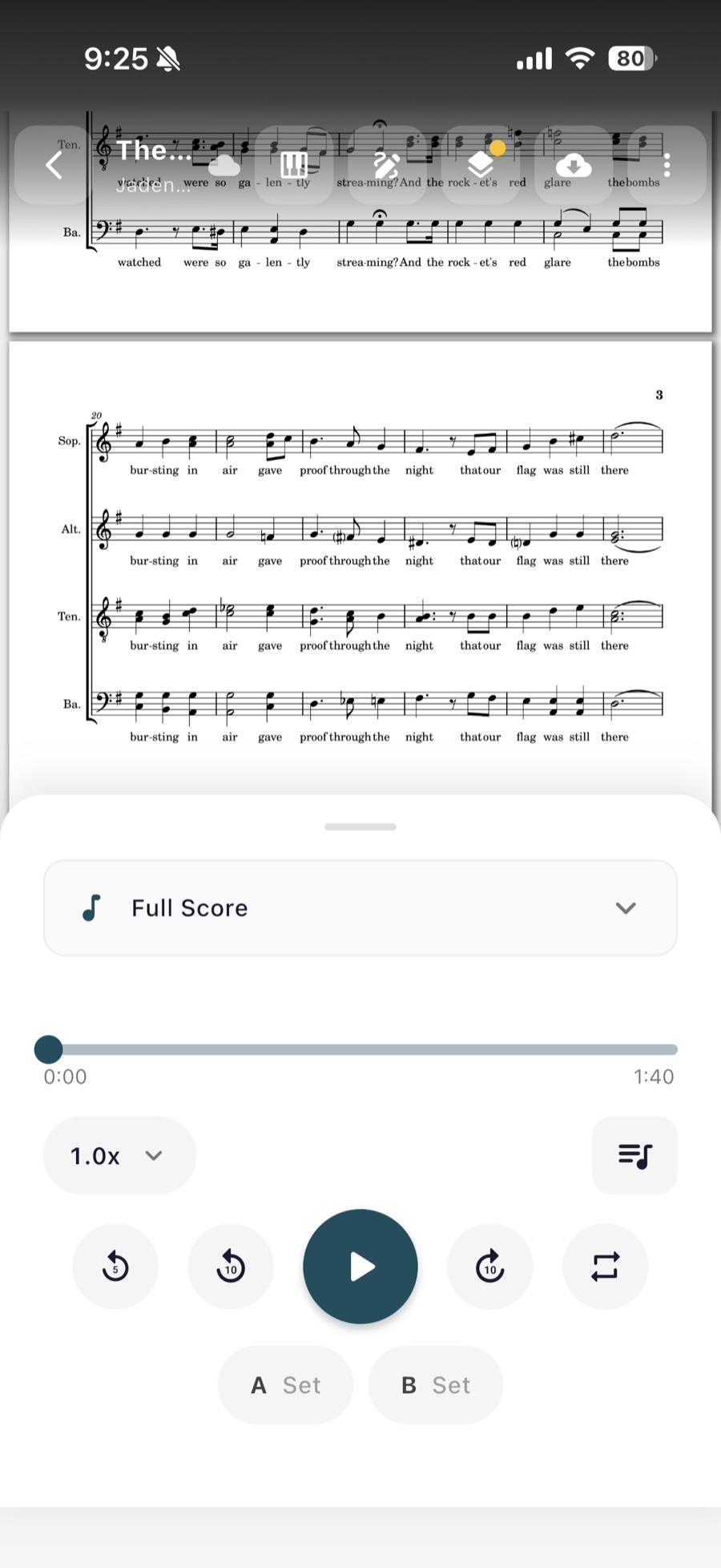
Add any audio to a sheet: a full mix, a rehearsal recording, or a part-dominant learning track for each voice part, sorted into folders so any singer can find their track in one tap. Slow a track down without changing the pitch, loop the hard passage, or link a recording from Spotify, Apple Music, or YouTube. Change the key of a track, and the app remembers it for that song. A piano keyboard and a pitch pipe are built into the reader.
How to use 5 guides
Add a track to a song
Managers and above
- Open the group, tap Music, then open the song.
- Tap the three dots at the top right, then Manage learning tracks.
- Tap Add learning track, then Upload files, and pick the recording on your device.
- Under Track Name, type a name singers will recognize, such as “Tenor predominant”.
- Tap Add track.
- To sort tracks by part, tap Add learning track, then New folder; move tracks in from their three dots.
Pick several files at once and each track takes its file’s name, so name the files first.
Turn a PDF into part tracks
Admins and owners
- Open a song that has a PDF and no learning tracks yet, and tap Make part tracks. (On any song: three dots, Manage learning tracks, Add learning track, Make part tracks from the PDF.)
- Check the price it shows and tap Make part tracks. If it doesn’t work, it costs nothing.
- Wait a minute or two while Reading your score shows how far it has got, or leave: you get a notification when it is ready to check.
- Under Worth a look, tap a bar to see it next to the same bar in the PDF.
- Tap Listen to the parts to hear what was read, then tap Keep as a learning track, or Discard.
Costs AI credits unless your group’s plan includes it, and is being rolled out group by group; if you don’t see the button yet, it isn’t on for your group.
Link a recording from Spotify, Apple Music or YouTube
Managers and above
- Open the song, tap the three dots, then Manage learning tracks.
- Tap Add learning track, then Add a link.
- Paste the Spotify, Apple Music or YouTube link where it says Paste a link.
- Type a Track name and, if the song has folders, choose one.
- Tap Add.
Spotify and Apple Music play a preview in the reader, with PLAY to hear the full track in their app; on the web every linked track opens in its service.
Slow it down or loop a passage
- Open the song and tap the player bar at the bottom to expand it.
- Tap the track name to open Select learning track, open your part’s folder and tap your track.
- Tap the speed, shown as 1.0x, and pick a slower one, down to 0.5x; the pitch stays put.
- Play to where the hard passage starts and tap Loop from; play to its end and tap Loop to.
- Tap either point again to move it, or the X beside them to clear the loop.
The reader remembers the track you last chose for each song on this device, so your part comes up next time.
Use the piano or pitch pipe
- Open the song and tap the piano icon at the top of the reader.
- Tap Piano for a playable keyboard.
- Tap Pitch pipe, then hold any note to hear it.
- Tap KEY for the song’s starting note, once the director has set its Song key in the same sheet.
Without a song open, the same tools are under Practice tools on the group hub and in the home screen’s three-dot menu.
MIDI practice
Upload a MIDI and every singer hears their own part, with the score following along.
Add a MIDI file, or a MusicXML score exported from MuseScore, Sibelius, Finale or Dorico, next to a song’s PDF and the app lines it up with the printed bars. Every singer then picks the part they sing and hears it balanced, loud, alone or left out, solos any other part, slows the track down without changing the pitch, and loops a passage with a bar of run-up. As it plays, the bar being sung is highlighted on the score and the pages turn by themselves.
How to use 4 guides
Add a MIDI or MusicXML score to a song
Managers and above
- Open the group, tap Music, then open the song.
- Tap the three dots at the top right, then Manage learning tracks.
- Tap Add learning track, then Upload files, and pick the .mid, .mxl or .musicxml file.
- Under Track Name, type a name singers will recognize, then tap Upload and line up.
- Tap Done when it reads Lined up; if it reads Needs a quick check, see the next guide.
A MuseScore file (.mscz) is not accepted: export it from MuseScore as compressed MusicXML (.mxl) first and add that.
Check the sync
Managers and above
- Open the song and tap Check the sync on the banner above the player.
- If it says Not lined up yet, tap Find the bars.
- With Barlines selected, tap inside a bar to add a barline, or tap a barline to remove it.
- Switch to Repeats, Endings, D.S./Coda or Skip for anything missed; the hint under the tools says where to tap.
- Tap Play from start to hear whether the music lands on the printed bars.
- Once every bar lines up, tap Done; short of that, Save progress keeps your edits for next time.
If the bar numbers are one off from the score, tap the Pickup button at the top of the card and choose the pickup length.
Practice your part
- Open the song and tap the player bar at the bottom to expand it.
- Tap Which part do you sing? and choose your part, or Change if it matched the wrong one.
- Pick who you hear: Balanced, Mine loud, Mine only, or Without me to sing against the others.
- To hear one other part alone, tap Parts, then the headphones beside that part.
- Tap Speed, then 0.5× or 0.75×, or use − and + to go a step at a time.
- Tap Loop, then tap the passage’s first bar on the score, then its last.
Under More, A bar before the loop adds a run-up and Speed up each time round makes each pass 5% faster.
Follow along in the score
- Tap Play: the bar being played is tinted on the score, and pages turn by themselves.
- Tap any bar on the page to jump to it, or use Back one bar and Forward one bar.
- Watch the player for where you are, such as “Bar 6 of 46”, and which time through a repeat.
- For one line of music at a time, tap the three dots and switch on Line by line.
- To look ahead freely, tap the sliders icon (Parts and tempo) and switch off Follow the score.
The highlight and page turns need the track lined up with the PDF; until the director has done that, the player works without them.
Learning playlists
Every song you’re learning, from every group, in one queue with your own tracks.
Pick the songs you need to learn from any of your groups and they line up in one playlist. For each song you choose which learning tracks are yours and the order to practice them in, and each song keeps its own stage, from new to ready. A director can publish a playlist to the whole group and see how ready each song is by section, never by name.
How to use 4 guides
Build your playlist
- On the home screen, tap Learning playlists, under My Library, then New playlist.
- In Choose songs, tap each song you want from any of your groups; Select all takes a whole group.
- To add a setlist in one go, tap it under Add a whole setlist.
- Tap Next, give the playlist a name, and drag the songs into the order you’ll practice them in.
- Tap Create playlist.
In a group’s music, the three dots on a song also offer Add to learning playlist, for a playlist you already have.
Choose your tracks for each song
- Open the playlist and tap Choose your tracks at the top; it walks you through each song.
- Tap the tracks you practice with, in order; each gets a number, and the play icon previews it.
- When the next song matches, tap Use these beside Same as to copy your last picks.
- Tap Save & next, then Save & finish on the last song; Skip for now leaves one for later.
- To change them later, long-press the song, or tap Change on My tracks in the player.
A song whose only track is a MIDI has nothing to pick; it reads practice on the score and opens in the reader instead.
Practice from the queue
- Open the playlist and tap Practice at the bottom; it names the first song that isn’t ready.
- Your first track plays; tap another number under My tracks to jump to it.
- Tap 1.0x to slow the track down; tap Loop: set A, then Set B, to loop a passage.
- After three plays the next track starts by itself. Tap Repeat 2×, then next to change that: the Repeats sheet has − and +, a box to type any number into, quick picks from None to 10×, and Repeat this track to stay on it until you move on. Tap Done; the count is remembered.
- Tap Got it when a track is down, and I know it: mark ready, next song on your last one.
- Tap the stage pill at the top, such as Learning, to set New, Learning, Polishing or Ready by hand.
If you haven’t picked tracks for a song yet, the player asks first; tap them and then Start practicing.
Publish a playlist to your group and see its progress
Admins and owners
- Build the playlist as above and go on to Review.
- Under Who is it for?, tap Everyone in your group; with several groups, tap A group and choose one.
- Tap Publish to the group; only that group’s songs can go in.
- Every member sees it under From your groups in Learning playlists, and picks their own tracks.
- Open the playlist and tap Group progress to see how many members are ready on each song.
- Songs come Needs the most work first, with counts under Ready by section; tap Playlist order to switch.
A section with fewer than three singers shows a dot instead of a count, so no number points at one person.
Tag library
A library of barbershop tags, most with every part recorded, ready for the parking lot.
Join the public tag group, with or without a chorus. Most tags come with tenor, lead, bari, and bass tracks, so you can learn your line or play all four parts to hear it ring. Favorite the ones you sing, browse by arranger, or import your Goodtags library in one step.
“Score Stack is excellent for collaboration. The Barbershop tag integration is my new go-to for tagging, as it is very intuitive. I’ve been using the app for several years, and it has consistently been high quality, with regular helpful updates.”
How to use 4 guides
Join the tag group
- On the home screen, tap +, then Find a group.
- Search for the public barbershop tag group by name.
- Tap the group, then tap Join group.
- Open it from your home screen; its bottom bar says Tags where other groups say Music.
Without an account, tap Just browsing? Explore barbershop tags on the sign-in screen to browse as a guest and heart tags on this device.
Find and favorite a tag
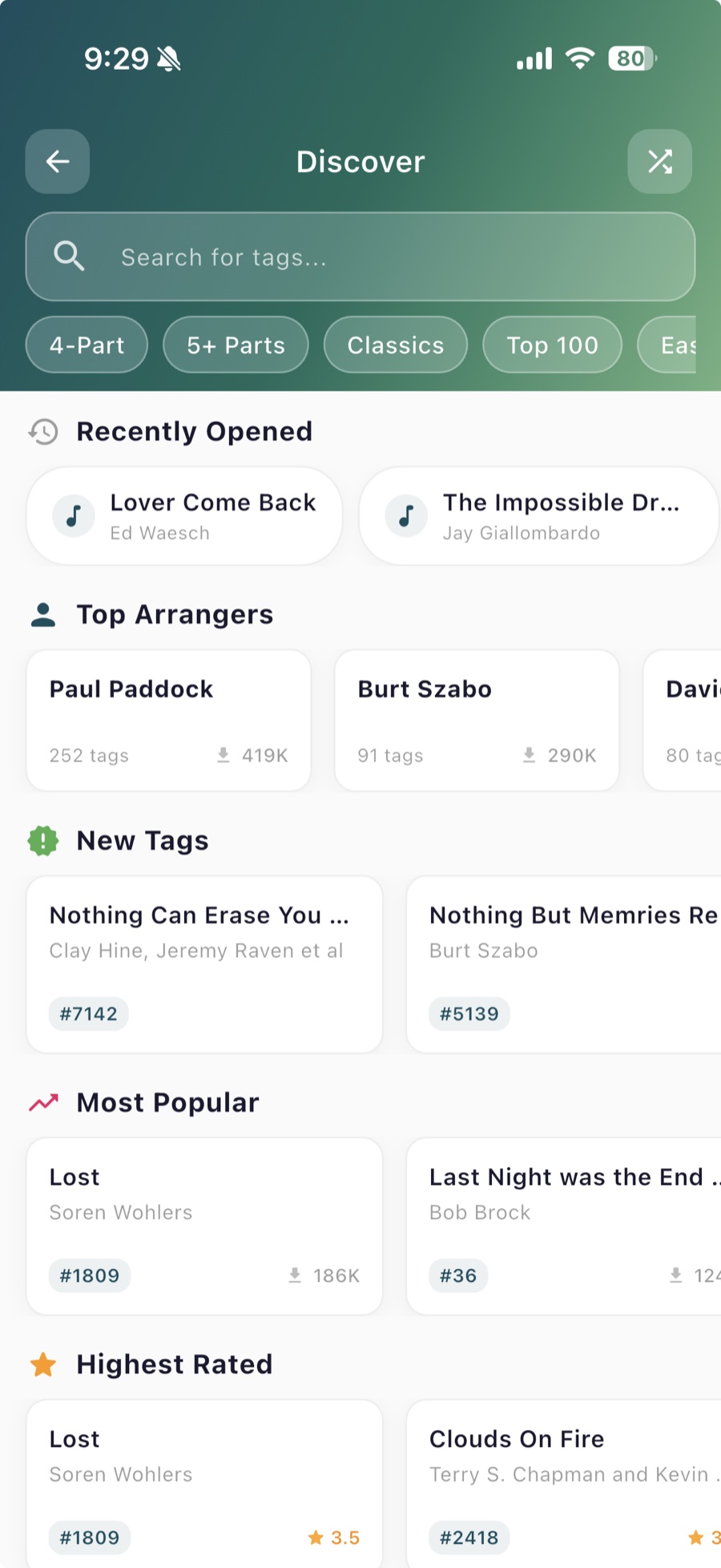
- Open the group, tap Tags, then tap Discover.
- Type a title in Search for tags..., or tap a filter like 4-Part or Top 100.
- Or scroll New tags, Most popular and Highest rated, or tap an arranger under Top arrangers.
- Tap a tag to open it, then tap the heart in the top bar.
- Back on Tags, your favorites are listed; use Search your favorites... to find one fast.
The filter chips hide while you are typing, so clear the search to see them again.
Learn your part or hear all four
- Open a tag and tap the player bar at the bottom of the screen.
- Pick Tenor, Lead, Baritone or Bass to learn your line, or All Parts to hear it ring.
- Pick a slower speed from the speed menu, or set A and B to loop a phrase.
- If the tag opens on Practice parts instead, tap Which part do you sing? and choose your part.
- Then choose Balanced, Mine loud, Mine only or Without me, or tap Parts to hear one part alone.
- Tap the piano icon for a pitch pipe before you start.
Only some tags offer Practice parts; tap that label to switch between it and the recordings.
Import your Goodtags library
- In goodtags, tap Home, then Data, then Backup, and save the .json file.
- In The Score Stack, open the group, tap Tags, then the three-dot More menu, then Import from another app.
- Tap Import from goodtags, then Choose goodtags export and pick the file.
- On Review import, tap any tag you don’t want to untick it.
- Set each label to Create new, Merge or Skip.
- Tap the Import button at the bottom, then See my favorites.
On iPhone and Android you can instead share the .json straight to The Score Stack from goodtags, which opens the same import.
Labels
Organize the music your way, so this week’s songs are one tap away.
Label sheets by season, concert, voicing, or anything else that fits how your group works. Filter the music list by a label and the rest gets out of the way. Managers can tick every sheet against every label in one grid and save it all at once.
“As a church choir director, Score Stack is immensely helpful to me. I use it to label sheet music by liturgical season so I can keep all my current hymns in the same place on my device throughout the year. The integrated part tracks are also very useful for my singers!”
How to use 3 guides
Show one label’s songs
- Open the group and tap Music.
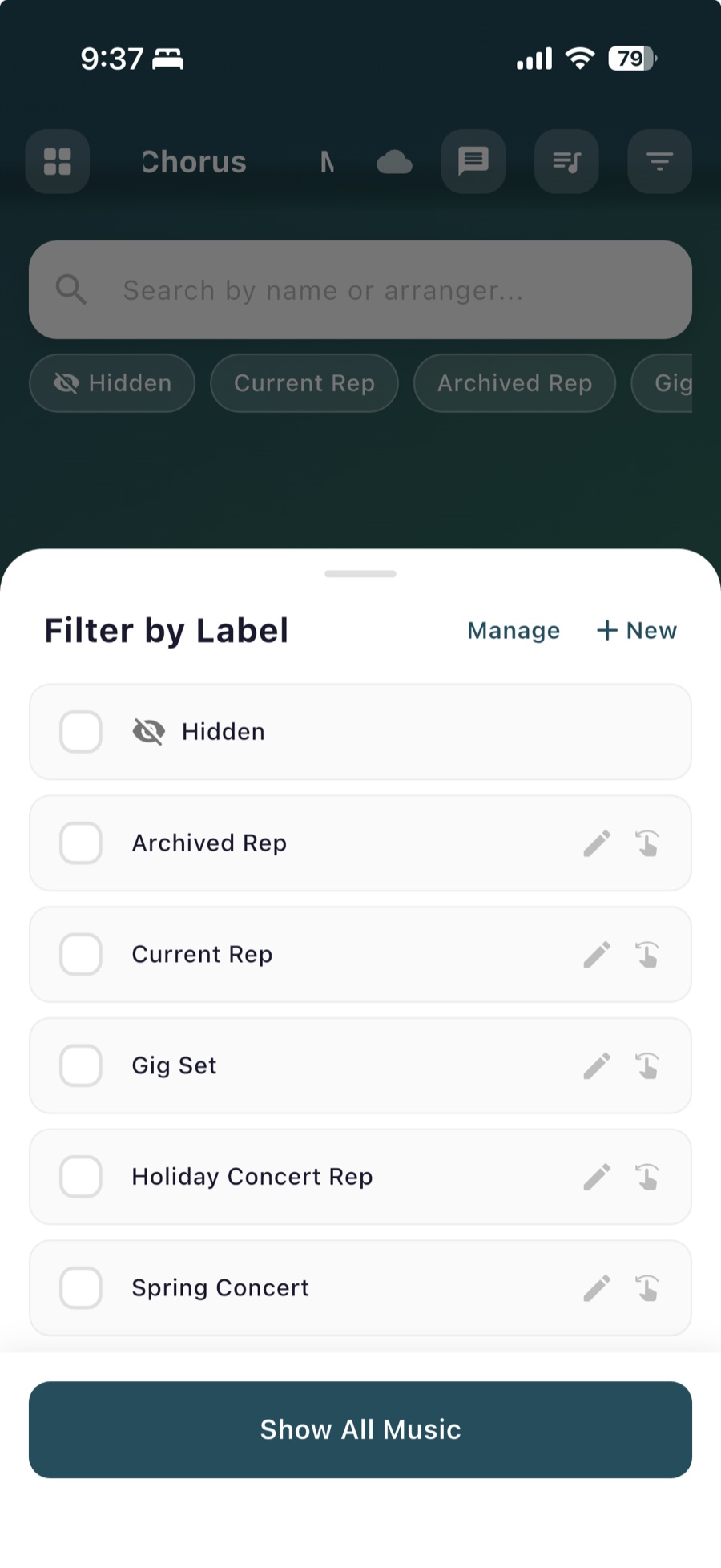
- Tap a label in the row above the song list.
- The list narrows to that label; tap it again to see everything.
- Or tap the filter icon to open Sort & filter and tick a label under Filter by.
- Tap Apply 1 filter; tap Clear there to show the whole list again.
The filter is remembered for this group, so if songs seem missing later, look for a highlighted label and tap it off.
Put labels on a song
Managers and above
- Open the group and tap Music.
- Tap the three dots on the song, then Labels.
- Tap a label to tick it, or tap a ticked label to take it off.
- To make a new one, type its name in Create a new label and tap +.
- Tap Save.
The Labels option is hidden while you are offline.
Tick every song against every label in one grid
Managers and above
- Open the group and tap Music, then tap the filter icon.
- Next to Filter by, tap Manage.
- In Manage labels, tap a cell to tick or untick that song for that label.
- Type in Search music to find a song in a long list.
- Tap New label at the end of the header row to add a column.
- Tap Save at the top right; it counts your unsaved changes until they are written.
- Tap a label’s header to rename it, or to delete it if you are an admin or owner.
In a web browser, the browser’s back button leaves without asking, so tap Save before you go.
Works offline
The music still opens when the rehearsal room has no signal.
Download a sheet and the app saves the PDF, its tracks, and the markings to your phone. Turn on auto-download for a group and new music is there before you need it. Setlists and the calendar are saved too.
Offline downloads are on iPhone, iPad, and Android.
How to use 3 guides
Save one song to your phone
- Open the group, tap Music, then open the song.
- Tap Offline in the top bar. On a phone it is on the second row of buttons.
- The first time, an Offline Music sheet offers auto-download for the group; choose, then tap Got it.
- A ring on the Offline button shows progress, then “Downloaded for offline use” appears and the button stays lit.
- Back in Music, the song now carries a pin that means it’s available offline. Tap Offline again to remove the copy.
On the web there is no Offline button; the browser always needs a connection, so use the phone or tablet app. Save, next to it, puts the PDF itself in your files where the group allows downloads.
Download everything in a group
- Open the group and tap Music.
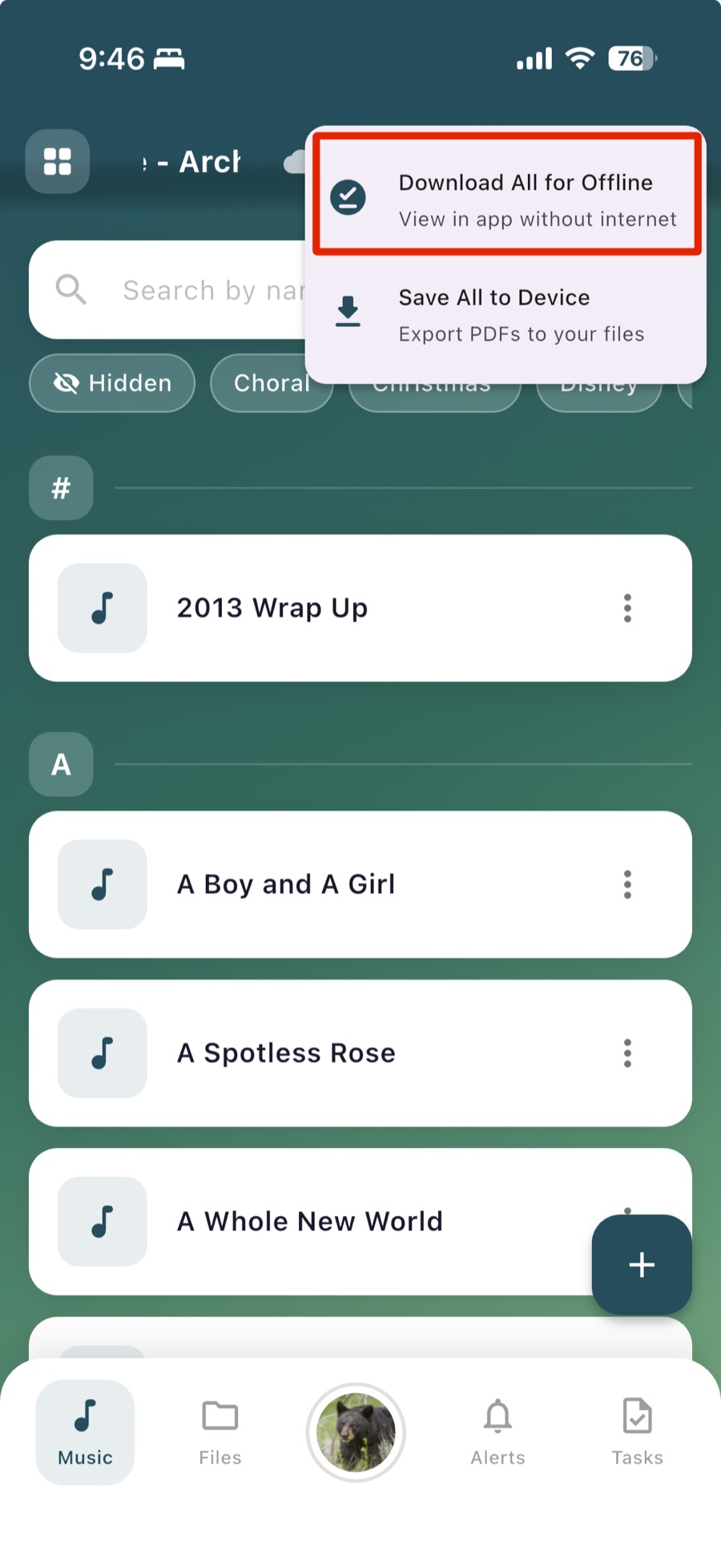
- Tap More, the three dots at the top, then Download all for offline.
- To keep it that way, tap the group photo in the bottom bar and scroll to Offline Music.
- Switch on Auto-Download Music, and Include Learning Tracks to save each song’s tracks too.
- New music then downloads the next time you open Music with a connection.
Downloaded Songs there shows the space used; tap Clear to remove every download.
Know what works offline
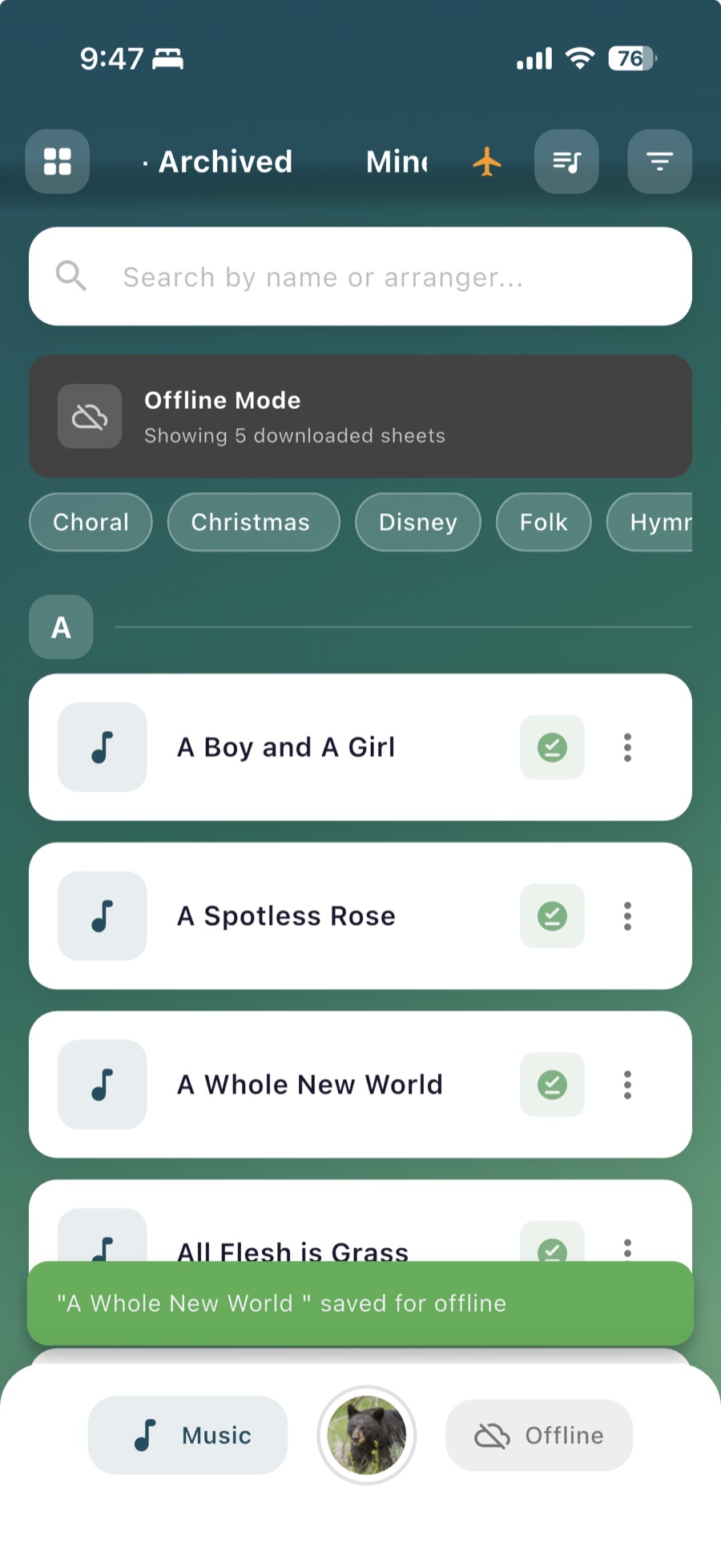
- Tap Music; an Offline Mode banner says how many downloaded songs are showing, and only those are listed.
- Open a song to read it, play the tracks you saved and see markings as last saved.
- Tap Calendar on the home screen; the banner says how long ago its events were saved.
- Setlists you opened while online still open, read-only.
- Tap the cloud in the Music title bar to test offline mode with signal; the plane returns you online.
You can’t add markings, upload or edit music, or open Messages until you’re back online.
For directors
Run rehearsal.
Mark it once and everyone’s copy is right. Know who’s in the room.
Director’s markings
Mark up the score once, and every singer sees it on their copy right away.
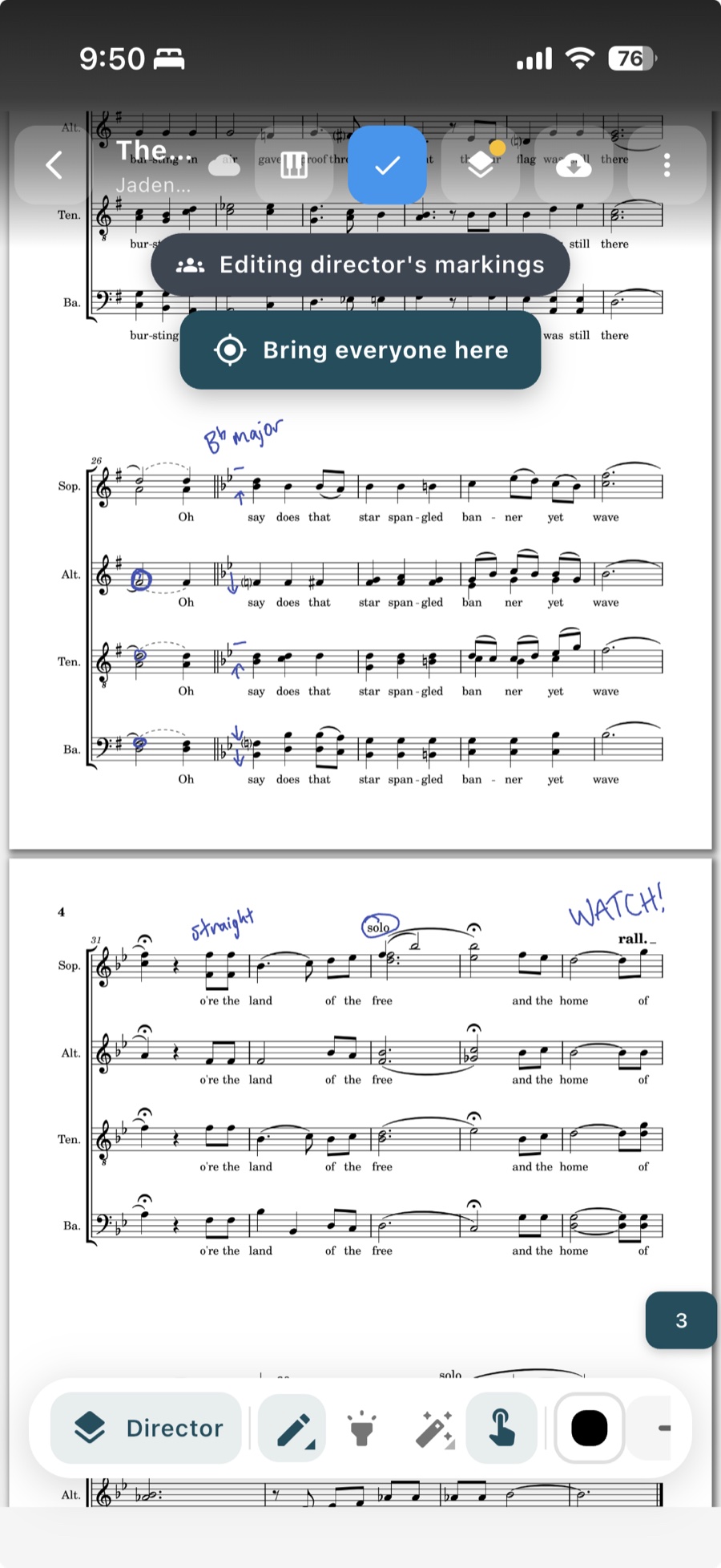
Breath marks, cuts, dynamics: draw them on the director’s layer and they appear on every singer’s phone as you draw, in real time. Singers keep their own private markings on top, and can show or hide yours. Pen, highlighter, eraser, undo, and stamps for breath marks and dynamics.
“Score Stack is amazing! I love how easy it is to navigate and how many features there are. My favorite feature is being able to see director notes added to the music in real time.”
How to use 4 guides
Mark up the score for everyone
Admins and owners
- Open the group, tap Music and open the song.
- Tap the pencil (Draw on this page) in the top bar.
- Tap My markings at the left end of the drawing toolbar.
- Under Drawing layer, choose Director’s markings.
- Draw with the pen, highlighter or a stamp while the banner reads Editing director’s markings.
- Tap the tick (Done drawing) when you finish.
Marks save about two seconds after you lift the pen, and singers with the song open see them then.
Show or hide the director’s markings
- Open the song and tap More in the top bar. An amber dot on it means the markings are hidden.
- Switch Show the director’s notes off or on.
Singers see the switch only once the director has marked that song, and the choice stays until you change it. While you are drawing on the notes the switch holds on, so ink cannot be hidden mid-stroke.
Keep your own private markings
- Open the song and tap the pencil (Draw on this page) in the top bar.
- Pick the pen, the highlighter or a stamp from the toolbar.
- Draw on the music; it saves as you go and stays private to you.
- Tap the tick (Done drawing) when you finish.
If you are an admin, check the chip at the left of the toolbar reads My markings, not Director, before you draw.
Place a breath mark, dynamic or rit.
- With the drawing toolbar open, tap Stamps. On a phone, slide the row of tools sideways to reach it.
- Tap a shelf stamp, or tap All stamps to search by name or browse Dynamics, Words and Breathing.
- Tap the music where the mark belongs.
- Tap a placed stamp to move it, drag its handle to resize it, or pick a new color.
- Tap it again to let go.
Under My stamps you can Draw your own, type a Text stamp, or trace a Picture such as your chorus logo.
Bring everyone here
Put the whole room on your page with one tap.
Turn to the passage you want to work on and tap the Bring everyone here button. Every singer with the song open gets a prompt with your name and the page, and one tap lands them on your spot, so nobody is three pages behind while you talk.
How to use 2 guides
Bring the group to your page
Admins and owners
- Open the song and tap the layers button (Annotation layers) in the top bar.
- Under Drawing layer, choose Director’s markings.
- Turn to the page and the spot you want the group on.
- Tap Bring everyone here at the top of the music.
- Tell singers to tap Jump on the prompt that drops in with your name and page number.
The prompt reaches only singers who have the same song open, and it fades after about 14 seconds.
Follow the director to their page
- Keep the song open in the reader during rehearsal.
- When the director taps the button, a prompt with their name and page drops in from the top.
- Tap Jump to land on their spot.
- To stay where you are, swipe the prompt up or tap the cross (Dismiss).
Nothing shows if you are on another screen when it arrives, so open the song and ask the director to tap again.
Setlists
Put tonight’s music in order: the group reads it that way, and so can the audience.
Build a setlist from your sheets, drag to reorder, and attach it to a rehearsal or a concert on the calendar. Singers swipe through it in one go, download it for offline, or share it as a text list or a printable program. On concert night the same setlist becomes a public Showtime program the audience follows on their phones.
How to use 4 guides
Make a setlist
Managers and above
- Open the group, tap Music, then Setlists at the top of the list.
- Tap New setlist (or Create a setlist when there are none), name it, and tap Create and add songs.
- Tap the songs you want, then tap Add 4 songs at the bottom (the button counts your picks).
- To move a song, press and hold its drag handle on the right and drag it into place.
- To take a song out, swipe it left; tap Undo if you slip.
- Tap Add songs any time to add more; every change saves as you go.
Songs land at the end in the order you tap them, so tap them in running order and there is less to drag.
Attach it to a rehearsal or concert
Managers and above
- Open the setlist and tap the three dots at the top right.
- Tap Link to an event.
- Tap the rehearsal or concert; the link saves straight away.
- Check it from Calendar on the home screen: open the event and the setlist is listed on it.
The list shows only upcoming events in this group that you can edit, so add the concert to the calendar first.
Sing through it on the night
- Open the group, tap Music, then Setlists, and open tonight’s setlist.
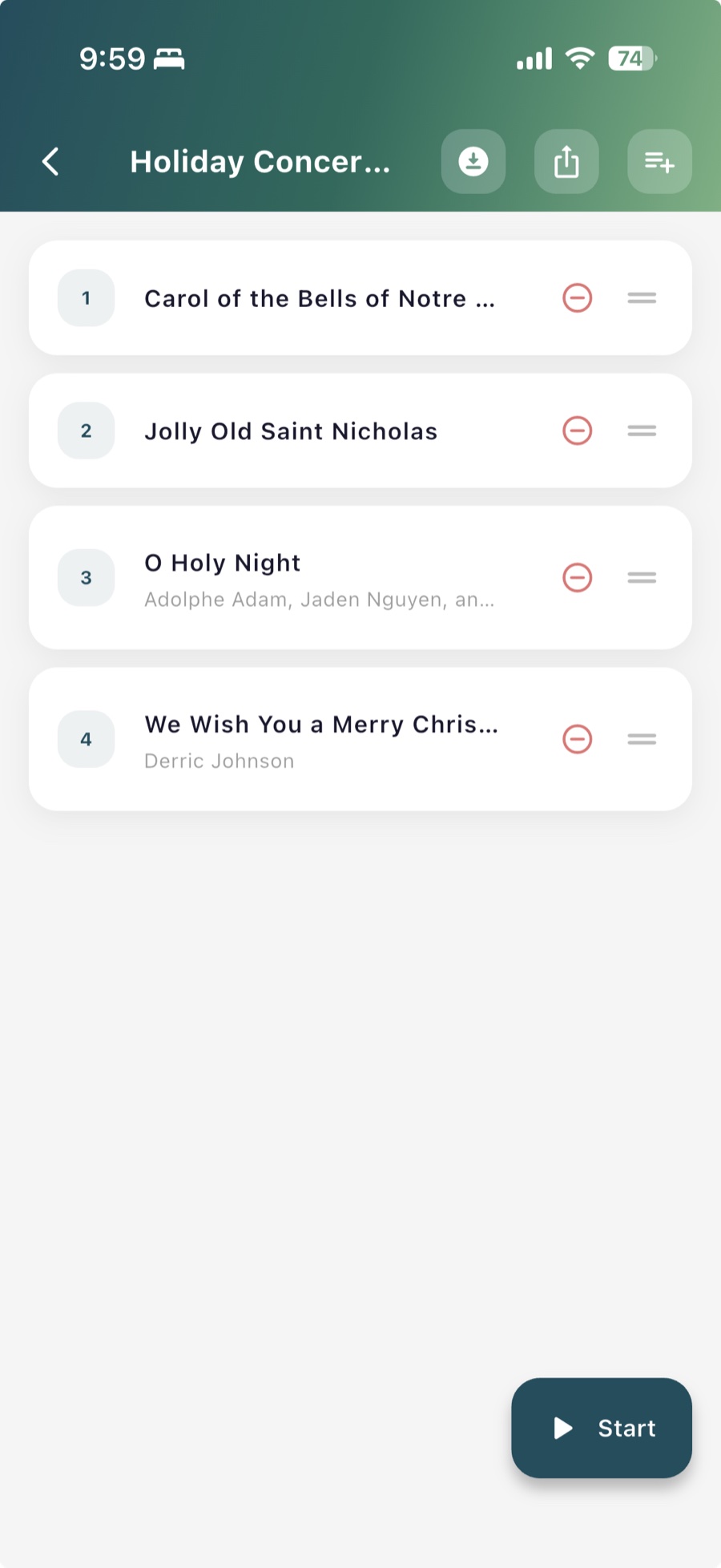
- Tap Start for the first song, or tap any song to begin there.
- Turn pages as usual; turning past the last page opens the next song.
- Use the arrows in the bottom bar to jump a song either way; it shows where you are.
- Before you leave, tap the download icon beside Start to save it for a hall with no signal.
A setlist attached to a rehearsal or concert also opens from that event in Calendar.
Attendance
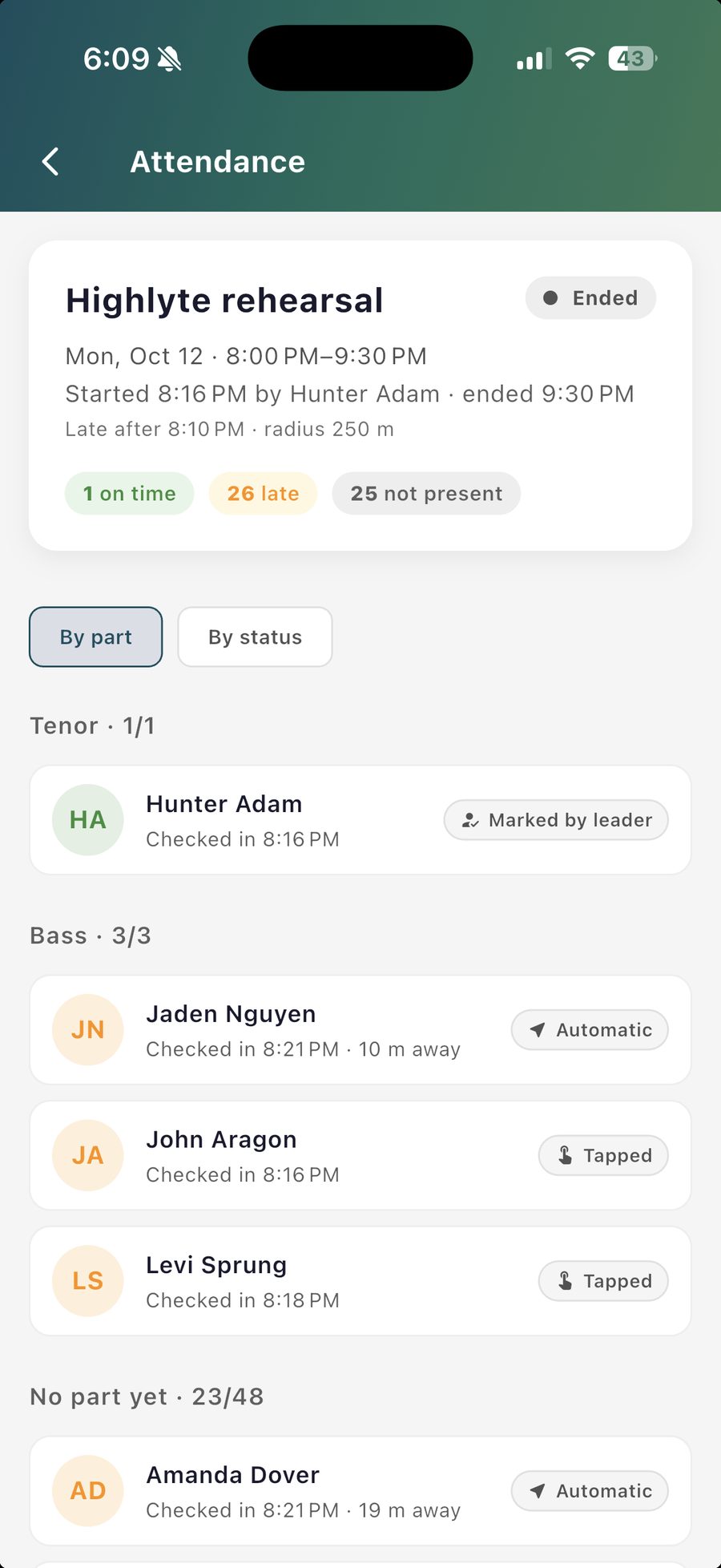
Attendance takes itself: it opens when rehearsal starts, and singers check in from their phones as they arrive.
Each rehearsal’s attendance opens on its own at the start time, and singers in the room are checked in from their phone’s location. Everyone else taps I’m here on the notification or scans a code at the door, and you mark the rest in one tap.
Then see every singer across months: who has missed three in a row, how each voice part is doing, and a CSV to export.
How to use 6 guides
Let attendance start itself
Managers and above
- Open the group, tap the group photo in the center of the bottom bar, then Rehearsal Manager.
- Tap a weekly rehearsal, then Edit schedule, or the three dots (More) next to a one-off, then Edit; new rehearsals from Set schedule or Add one-off get the same settings.
- Under Attendance, keep Take attendance at this rehearsal and Start attendance automatically on.
- Under Start attendance, pick At start or a few minutes before, and under Count as late after, how many minutes count as on time. Tap Save.
- At rehearsal, tap Use where I am now in the same screen to set the check-in location; otherwise it is saved the first time someone starts attendance there.
To start early, or for anything unscheduled, tap Attendance Center in Rehearsal Manager, then Start attendance for your next rehearsal or Start an ad-hoc session now; starting by hand also lets you require a passcode.
Check in as a singer
- The first time a rehearsal starts, The Score Stack asks Check in automatically? Tap Check me in automatically, then allow location, with Precise on, when your phone asks.
- From then on, open the app in the room and you’re checked in; the card reads “Attendance session live”.
- App not open? Tap I’m here on the Rehearsal has started notification (press and hold it if the button doesn’t show).
- Otherwise tap Check in on the Rehearsal has started card in Music, typing the passcode if one is asked for.
- To change your answer later, tap Me on the home screen, then More settings, and switch Check me in at rehearsal.
You count as present within about 250 m of the rehearsal’s check-in location. Your location is looked at once, while the app is open, and never tracked.
Check people in at the door
Managers and above
- While attendance is live, tap Door check-in in Attendance Center or on the roster.
- Prop the phone or iPad by the door; the screen stays awake and the code changes every 30 seconds.
- Singers open their phone camera and point it at the code under Scan to check in; no location needed.
- Visitors tap Visiting? Sign in, type their name (email and how they heard are optional), tap Sign in, then Done for the next person.
Guests are listed after the members on the roster, with how they heard about you.
Take roll or fix a record
Managers and above
- In Attendance Center, tap View roster on the live session, or a past session under Past rehearsals.
- While it’s live, tap Mark everyone else present, or a part’s own button beside its name (Mark Tenor present), then Mark present; they count as on time.
- Once it has ended, tap Excuse the rest to excuse everyone who never checked in, with a reason if you like.
- To change one person, tap their row and choose On time, Late, Excused or Not present, then tap Save.
Singers who said they can’t come are left out of Mark everyone else present, and count as not present until you excuse them.
See attendance over time
Managers and above
- In Attendance Center, tap See attendance over time.
- Pick 4 weeks, 3 months, 6 months or 12 months at the top.
- Needs attention lists anyone who has missed three or more rehearsals in a row, and Voice parts shows each part’s rate.
- Under Everyone, tap a name for their attendance, a square to correct it, or a date for that rehearsal.
- Tap Export CSV to send the whole range to a spreadsheet.
See your own attendance
- Open the group and tap the group photo in the center of the bottom bar.
- Under This group, tap My attendance; it shows once your group has taken attendance with you.
- Pick a range at the top to see how many rehearsals you made, your streak, and each rehearsal: on time, late, excused or missed.
Song check-ins
See how ready your singers are on every song before the next rehearsal.
Ask the group how comfortable, or how memorized, they are on a setlist or a few songs. Each singer answers with one tap per song, and the results fill in on your screen as they arrive: a bar for every song, the names behind each answer, who hasn’t replied yet, and readiness by section. Close it when you have what you need, or let it close on its own after three days, a week or two weeks.
How to use 3 guides
Send a check-in
Managers and above
- Open the group, tap Music, then Setlists at the top of the list, and open a setlist.
- Tap the check-in icon at the top right (Send a check-in).
- Under Ask about, choose Comfort or Memorization; under Closes after, pick 3 days, 1 week or 14 days.
- Type in Add a note (optional) if you want to say why you’re asking.
- Turn on Share results with members if singers should see the anonymous totals once they answer.
- Tap Send check-in; singers get a notification and a card at the top of Music.
To ask about one song instead, tap the three dots next to it in Music, then Send a check-in; for a few, press and hold to select them, tap More actions, then Send a check-in.
Answer a check-in
- When your director sends one, open the notification, or open the group and tap Music.
- Tap the card at the top that says your director wants a quick check-in.
- On each song’s card, tap Performance ready, Notes solid, Getting there or Haven’t started; the next song slides in.
- After the last song, tap Save answers.
- If your director shared the results, How the group answered appears; tap Done.
Leave early and what you answered is kept; you can change any answer until the check-in closes.
Read the results
Managers and above
- Open the group, tap Music, then More (the three dots at the top), then Check-ins, and tap one.
- The top card counts who answered all, partial and no answer, and it updates as answers arrive.
- By section (when singers have voice parts) tallies each part: ready, needs work, partial or no answer.
- Every song has a bar; tap it to see which singers gave each answer.
- Under No answer yet, tap Nudge to remind everyone who hasn’t replied; it works once in 24 hours.
- To stop taking answers early, tap the three dots at the top right, then Close check-in.
Singers never see names; they see the anonymous totals only if you turned on Share results with members.
Recorded part checks
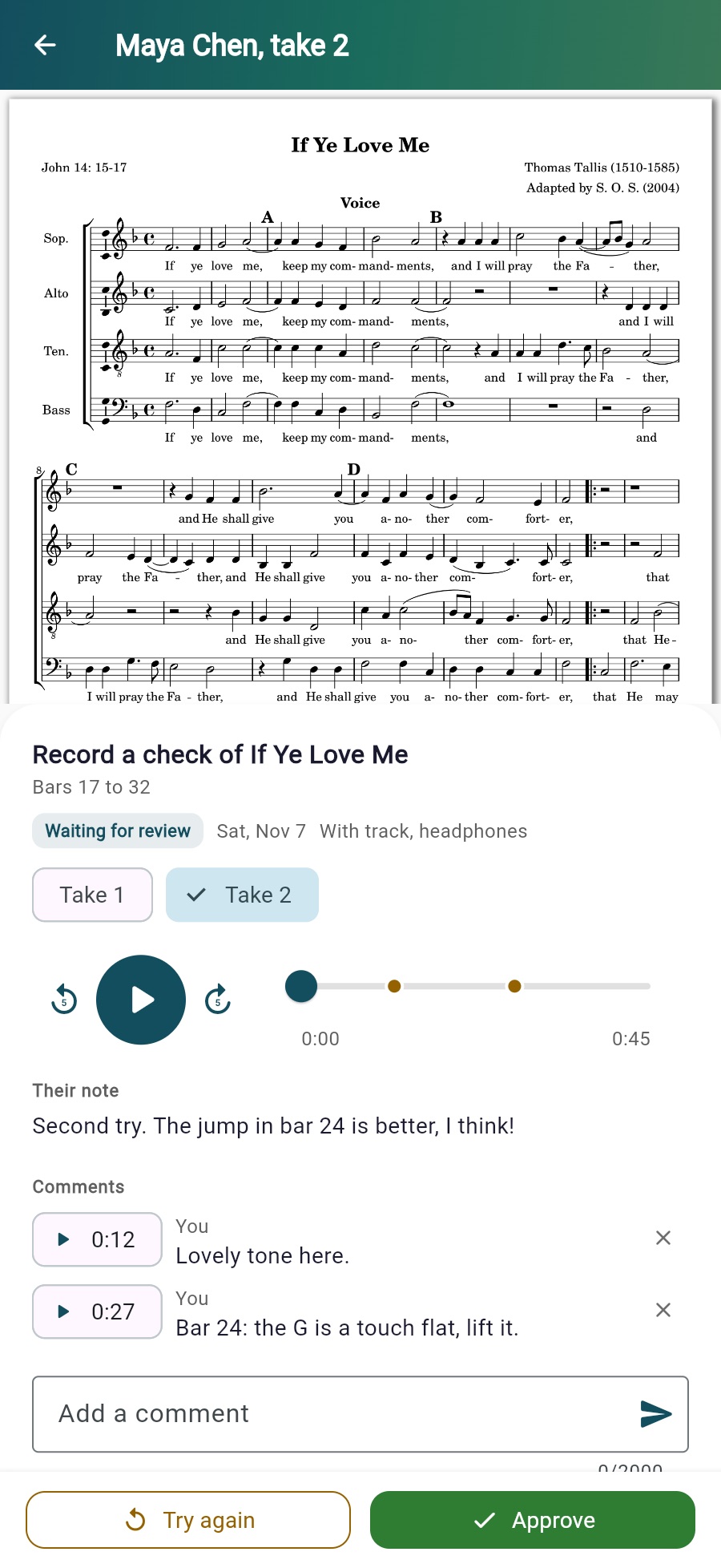
Singers record their part in the app; you listen, comment, and approve it or ask for another take.
Turn any song task into a part check. Each singer records right under the sheet music, singing with their own learning track in headphones or a cappella, listens back, and sends the take when they’re happy with it. You hear every take beside the score, pin a comment to the exact moment (“bar 24: lift the G”), and answer Approved or Try again. Every attempt is kept, so you can hear the progress, and a singer’s recordings are only ever heard by them and the people who run the group’s tasks.
How to use 4 guides
Ask for a recording
Managers and above
- Open the group, tap Tasks, then New task.
- Under Song, tap Choose a song and pick it.
- Turn on Ask for a recording.
- Leave Done when approved on to approve each take, or turn it off so sending a take finishes the task.
- Under Sing with, choose Their choice, Their track or A cappella; to ask for one passage, fill in Only some bars.
- Choose who it’s for and when it’s due, then tap Create task.
A task that asks for a recording is about one song, so it can’t repeat.
Record and send your part
- Open Tasks, tap the task, then Record.
- Choose With my track or A cappella; with a track, put headphones on first.
- Tap the red microphone. Recording starts with a count of 3, then your track.
- Tap stop when you’re done, and listen back.
- Tap Record again for another try, or add a note for the director and tap Send.
Without headphones your track ends up in the recording too, and the director is told so.
Review takes
Managers and above
- In Tasks, switch to Manage and tap recordings to review at the top.
- Tap a singer to open their take, with the score above the player.
- Pause where you hear something and type a comment; leave the At chip on to pin it to that moment.
- Tap Approve or Try again, and add a word for the singer if you like.
- The next take waiting opens by itself.
On a task, Review lists only that task’s takes, and each member shows Not sent, To review, Try again or Approved.
Choose how long recordings are kept
Admins and owners
- In Tasks, switch to Manage and open recordings to review.
- Tap Keep recordings at the bottom.
- Choose Until the member leaves, 30 days, 3 months, 6 months or A year.
A member’s recordings are always deleted when they leave the group, whatever you choose here.
Riser charts
Who stands where, on every singer’s phone before they walk on.
Build the chart for a concert by dragging singers onto the risers, or let the app arrange them by section and adjust from there. Pin it to the concert and tell the singers: each one sees their own spot in words, how to walk on and who stands beside them, and the chart stays on their phone with no signal. Print one to tape up backstage.
How to use 5 guides
Build a chart
Managers and above
- Open the group and tap the group photo in the center of the bottom bar.
- Under Performances, tap Riser charts, then New chart; name it and tap Create.
- Tap the three dots, then Rows, shape and spots: add rows, set spots per row, and pick a shape.
- For a first draft, tap the three dots, then Arrange automatically; choose By section or Mixed and tap Arrange (see “Set your own part order” below).
- Hold a name under Not placed yet and drag it onto a spot; drop on someone to swap.
- Drag a singer back onto the tray to take them off, then tap Save; the button counts your changes.
If you can’t drag, tap an empty spot instead and pick who stands there, Add a guest here for a borrowed singer, or Make this a gap for an aisle.
Set your own part order
Managers and above
- Open the chart, tap the three dots, then Arrange automatically.
- Choose By section for each part in a block, or Mixed for parts repeating along every row, quartet style.
- Under Part order, hold the handle beside a part and drag it; the top of the list is the audience’s left. Group’s order puts it back.
- Untick a part to leave it exactly as it is, placed or not; untick No voice part to keep new members in the tray for you to place by hand.
- If the chart is pinned to a concert and someone has answered Can’t go, turn on Leave out to send them to the tray and close the gap.
- Tap Arrange; the button counts who will move. Drag anyone to adjust, or tap undo.
Your order and the parts you untick are remembered for this group on this device. Leave out is about one concert, so it starts off each time.
Find your spot as a singer
- Open the group and tap the group photo in the center of the bottom bar.
- Under Performances, tap Riser charts; each chart shows your spot, such as “Front row, 3rd from your right”.
- Open the chart: Your spot says where you stand, how to walk on, and who is beside you.
- Tap From the risers to see it the way you will, facing the audience; tap Names to label everyone.
- In the wings, tap Backstage mode for a dark, large view that keeps the screen on.
Open the chart once while you have signal; it is saved on your phone and opens backstage with none.
Pin it to the concert and tell the singers
Managers and above
- On the home screen tap Calendar, open the concert, and tap Pin a riser chart, then the chart.
- Singers then see the chart on that event, with their spot; singers who answer Can’t go are marked on it.
- For a Showtime show, open the show and tap Pin on its Riser chart card.
- Back on the chart, once it is saved, a chip reads 3 not told; tap it, then Tell them.
- Each singer gets a notification saying where they stand; tapping it opens the chart on their spot.
- Move someone later and the chip returns, counting only the singers whose spot changed.
Showtime shows are run by admins and owners, so a manager pins the chart to the calendar event instead.
Print it or share it
- Open the chart, tap the three dots at the top right, then Print or share.
- Your device’s share sheet opens; print the PDF or send it on from there.
- In the web browser the PDF downloads instead.
- Tape up page 2, Singers’ view: the chart mirrored, as singers stand facing the audience.
- Page 1, Audience’s view, is for you and the stage manager; page 3, Find your spot, lists everyone by last name.
The PDF is drawn from what is on screen, so unsaved changes print too.
For admins
Run the group.
Rosters, roles, files, and tasks, without a spreadsheet on the side.
Rosters and join links
Get the whole chorus in with a QR code, not twenty invitations.
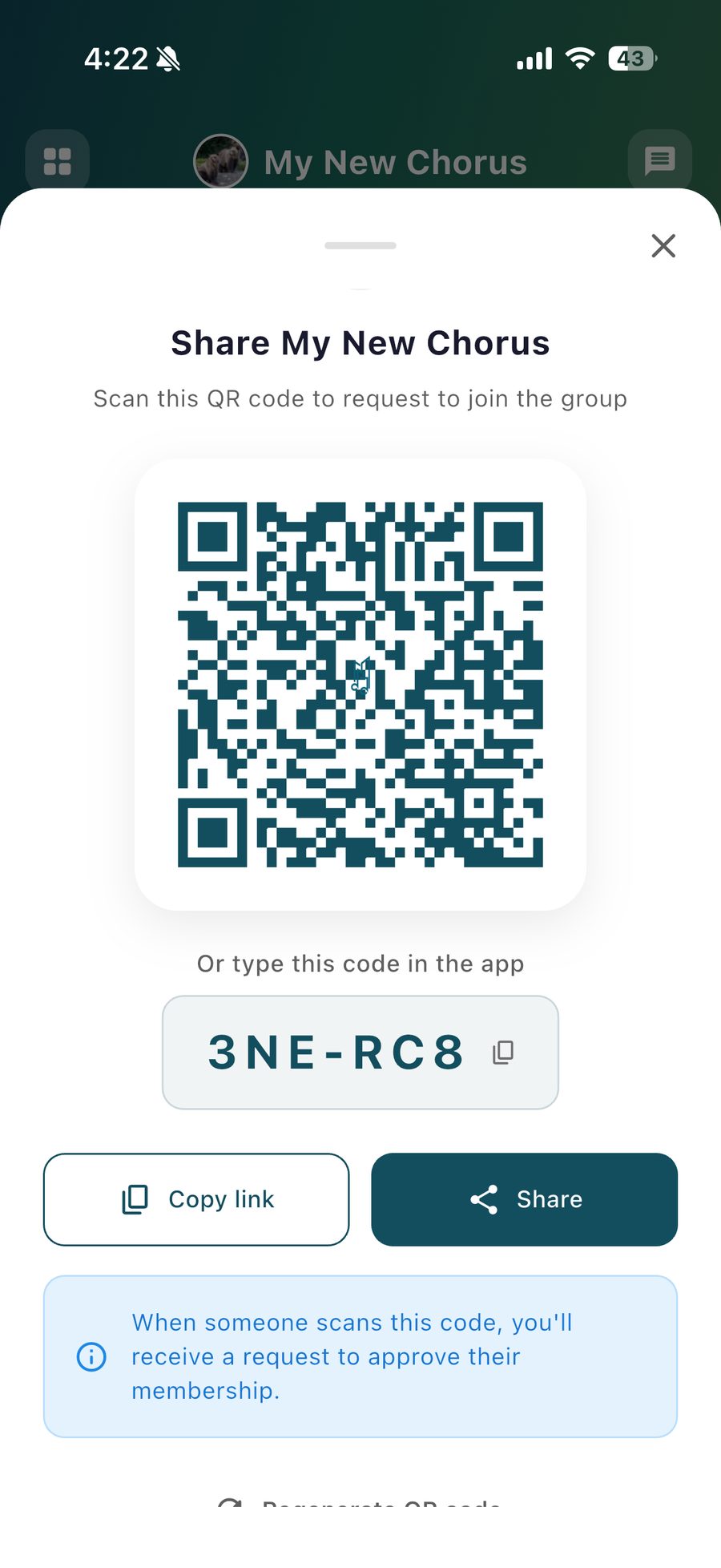
Invite people by name or email, or share a join link and QR code at rehearsal and approve requests as they come in. Remove members, hand ownership to the next president, and see who hasn’t accepted yet.
How to use 4 guides
Share the join link and QR code
Admins and owners
- Open the group and tap the group photo in the center of the bottom bar.
- Tap Invite singers.
- Put the QR code on a screen at rehearsal, or tap Share or Copy link to send the link.
- Anyone without the app installs it, then types the code under Or type this code in the app.
- Each scan becomes a join request; approve them under People.
If the code gets out, tap Regenerate QR code; the old link and code stop working.
Approve join requests
Admins and owners
- Open the group and tap the group photo in the center of the bottom bar.
- Tap People; a badge on it shows how many people are waiting.
- Under Pending requests, tap the green check to let someone in, or the red X to decline.
- With two or more waiting, tap Approve all, then Approve all again to confirm.
To let anyone with the join code straight in, turn on Join code skips approval under Group settings.
Invite someone by name or email
Admins and owners
- Open the group, tap the group photo in the center of the bottom bar, then tap People.
- Tap the Add member button in the bottom corner.
- Type their name or email in Search by name or email.
- Tap their name, then tap Send invitation.
- They get the invitation on their home screen, and you’re notified when they answer.
- Cards marked Pending are invitations not yet accepted; tap one, then Cancel invitation to take it back.
Search only finds people who already have an account; for anyone else, tap Send them a link to join.
Remove a member
Admins and owners
- Open the group, tap the group photo in the center of the bottom bar, then tap People.
- Tap the member, then tap Roles and details.
- Tap Remove from group, then Remove.
To keep someone on the roster but pause their notifications for a season, tap Mark inactive on the same sheet instead.
Roles and permissions
Give people exactly the access their job needs.
Every group has four built-in roles: Owner, Admin, Manager, and Member, and each person has exactly one. Managers add music, events, and announcements. Admins invite and remove people and change settings. Members see everything they need and can’t break anything.
Need something in between? Make your own roles, like Librarian or Section Leader, pick what each one can do with simple switches, and give them to members on top of their built-in role, for good or until a date. Preview the app as any role to check what they’ll see before you hand it out, and look back at who changed what in the history.
How to use 7 guides
Change someone’s role
Admins and owners
- Open the group and tap the group photo in the center of the bottom bar.
- Tap People.
- Tap the person, then Roles and details.
- Under Roles, tap their Built-in role.
- Tap Admin, Manager or Member. Moving someone down asks first and lists what they lose.
Everyone has exactly one built-in role. New people always join as a Member, so invite them first, then come back here to change it.
Choose which role to give
Admins and owners
- Give Member to singers: they see music, files, posts, events and tasks but can’t change anything.
- Give Manager to your music team: they add and edit music, files, events, posts and tasks.
- Give Admin to whoever runs the group: everything a manager does, plus inviting and removing people, roles and settings.
- Keep Owner for one person: everything an admin does, plus deleting the group or handing it to someone else.
Managers can’t delete labels or hide music and files; that takes an admin.
Make a role of your own
Admins and owners
- Open the group, tap the group photo in the center of the bottom bar, then tap People.
- Tap the Roles tab, then New role. To start from a built-in role, tap it instead, then Copy as a new role.
- Under Start from, keep Blank or pick a starter like Librarian or Section Leader.
- Type a Name, and add a Description and Color if you like.
- Under What this role gives, turn on the switches it needs; tap More for finer ones.
- Tap Save.
You can only give a role what you can do yourself; anything else is switched off with the reason.
Give someone a role
Admins and owners
- Open the group, tap the group photo, then tap People.
- Tap the person, then tap Roles and details.
- Under Added roles, turn on the roles they should have. Pick No end date, or Until a date to have the role end on its own after that day, then tap Give role.
- To change or remove an end date later, tap the date on the role (it reads Until and the day, or No end date). Remove role is there too.
- Open What they can do to check the result, and where each part of it comes from.
To give one role to several people at once, open the Roles tab, tap the role’s menu, then Choose who has it. Tap Set beside End date for people you add to give them an end date. They get a notice whenever their roles change.
Preview the app as a role
Admins and owners
- Open the group, tap the group photo, then tap People.
- Tap the Roles tab.
- Tap Member, then Preview as Member to see what singers see, or tap a role’s menu, then Preview as this role.
- Look around; a bar at the top says Previewing as and the role’s name.
- Tap Exit on that bar when you’re done.
Nothing can be changed while you preview, so you can tap around safely.
See who changed what
Admins and owners
- Open the group, tap the group photo, then tap People.
- Tap the Roles tab, then History (the clock at the top, or the last row of the list) to see every change to roles and who has them, newest first.
- For one person, tap them, then Roles and details, then History.
- For one role, open it from the Roles tab, then tap History (the clock) at the top.
- Scroll down and tap Load more for older changes.
Each change says who made it and when. Roles that end on their end date are listed as automatic changes, and anything done while previewing a role says so.
Hand ownership to someone else
Owners only
- Open the group, tap the group photo, then tap People.
- Tap the new owner, then Roles and details.
- Under Roles, tap their Built-in role, then Owner.
- Read what changes, then tap Transfer to make them the owner and yourself an admin.
They must already have accepted their invitation; someone with a pending invite can’t be made owner.
Files
Bylaws, riser charts, and the gala menu, in the same app as the music.
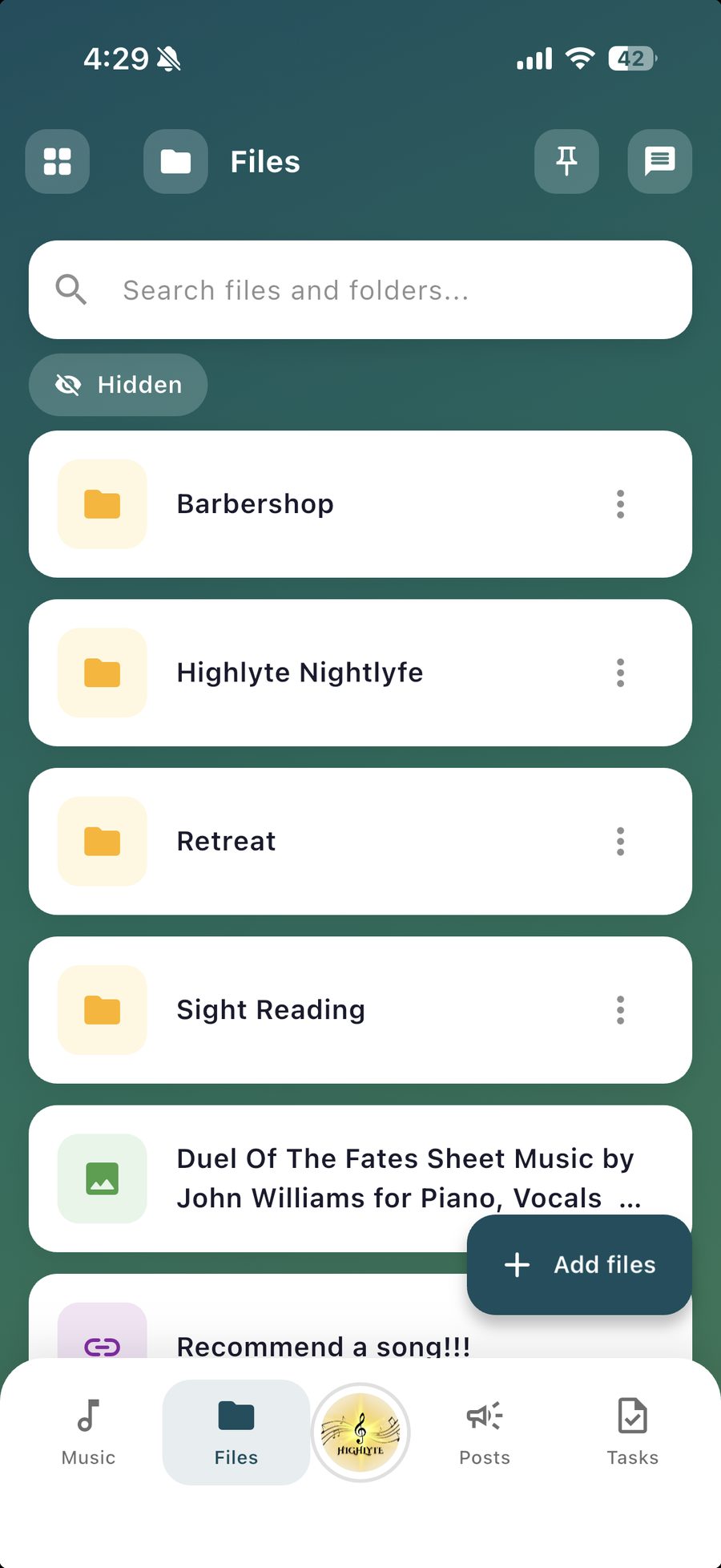
A file store separate from the sheet music, with folders, links, and pinning. Keep a document admin-only, or move a PDF into the music list when it turns out to be a score.
How to use 4 guides
Add a file or a link
Managers and above
- Open the group and tap Files.
- Tap Add files, then Upload file.
- Tap Tap to select file and pick the file on your device.
- Change the File name if you like; it starts as the file’s own name.
- Tap Upload.
- For a web page instead, tap Add files, then Add link, and enter a Link name and URL.
Files takes PDFs, images, and audio, so save a Word document as a PDF first.
Make a folder and move files into it
Managers and above
- In Files, tap Add files, then New folder.
- Type a Folder name and tap Create.
- Press and hold a file you want inside it, then tap Move.
- Tap the folder, then tap Select this location.
A folder’s own options (rename, move, delete) are behind the three dots on its row, not a long press.
Pin a file
Managers and above
- In Files, press and hold the file.
- Tap Pin.
- Tap the pin icon at the top of Files to see every pinned file in the group.
Pinned files show a small orange pin on their row; tap the pin icon again to see everything.
Move a PDF into the music list
Managers and above
- In Files, press and hold the PDF.
- Tap Move to Music.
- Open Music to find it in the group’s song list.
Only PDFs offer Move to Music, and the file leaves Files once it moves.
Tasks
Assign the job, set the date, and let the app do the reminding.
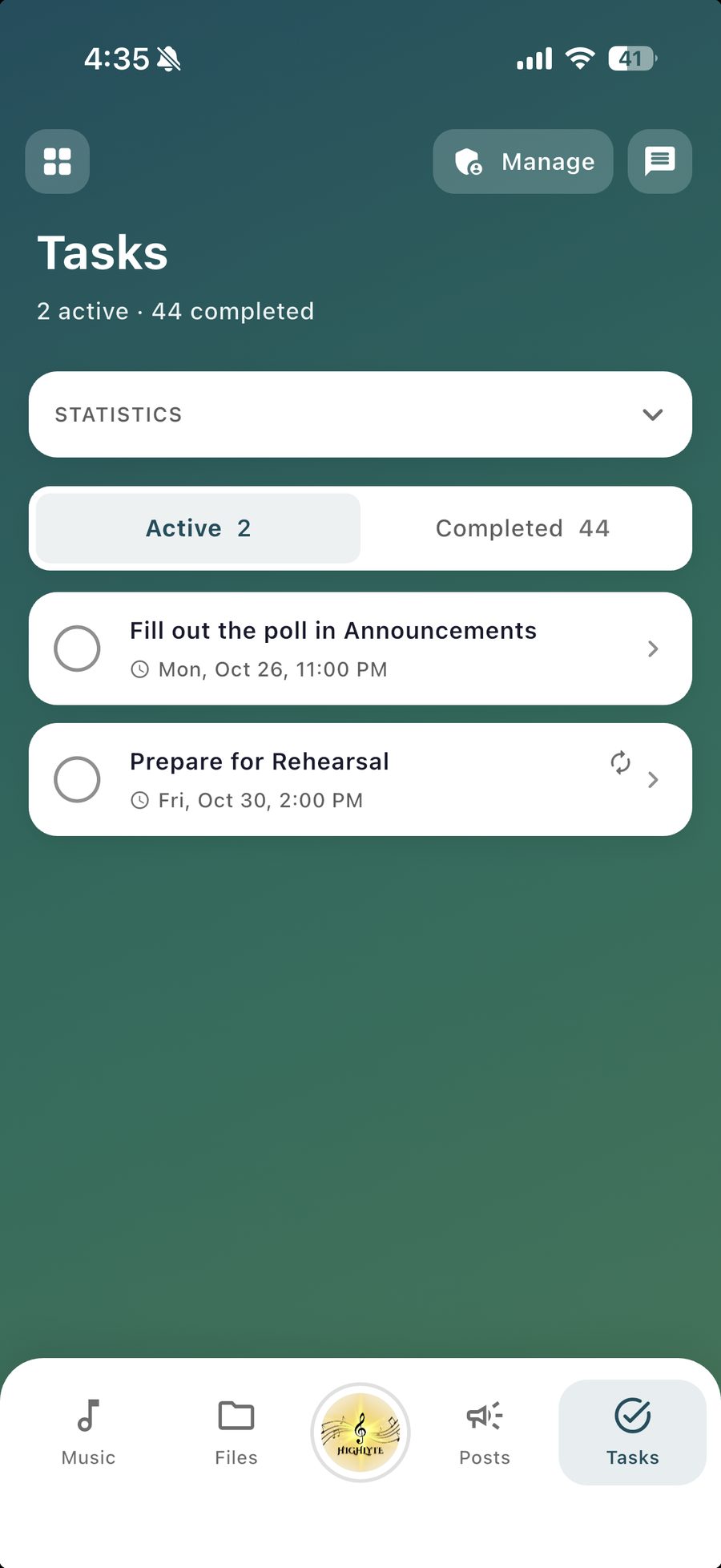
Give a task to one person or a whole section, with a due date, subtasks, and attachments. Tasks show on the calendar, and a reminder goes to whoever hasn’t finished.
How to use 4 guides
Give someone a task
Managers and above
- Open the group and tap Tasks, then Manage at the top.
- Tap New task.
- Give it a name and pick the day it’s due.
- Under Who’s it for?, choose Everyone, a Voice part, a Saved list or Pick people.
- Tap Create task; everyone it’s for gets a notification and sees it on their Calendar.
A voice part follows people when they change part. Saved lists are your own groups of people, like the board: set them up under Manage, then Saved lists.
Add subtasks and attachments
Managers and above
- While creating a task, scroll to Checklist and tap Add subtask.
- Type a step and press return; the box stays open so you can add the next one.
- Under Attachments, tap Add file to upload a PDF or recording of 10 MB or less.
- Or tap Add link, enter a Name and the URL, and tap Add.
- To change these later, open the task from Manage tasks; the same buttons are on its details page.
In a web browser, Add file can’t upload; add a link instead, or attach the file from the phone or tablet app.
Mark a task done
- Open the group and tap Tasks.
- Tap the circle beside a task to mark it done, or open the task and tap Complete.
- If there’s a checklist, tick each step inside the task; it completes itself at the last tick.
- To reopen one, switch to Completed, open the task and tap Mark active.
- From the home screen Calendar, tap a task on its due day and tap Mark complete.
If tasks don’t show on the home Calendar, tap the Tasks chip above the calendar to turn them back on.
See who has finished and send a reminder
Managers and above
- Open the group and tap Tasks, then Manage.
- Check the count on each task, like 4/12, then tap the task to open it.
- Scroll to Assigned members; each singer is marked Completed or Pending.
- Tap the bell beside a singer to remind them, or Remind at the top to nudge everyone pending.
- Or wait: the day before a task is due, the app reminds everyone who hasn’t finished, once.
A task due today or already overdue gets no automatic reminder, so send one yourself.
Organizations
Direct several groups? Keep them together.
An organization sits over your groups: its admins are admins in every group, and the groups show together on your home screen. We set organizations up with you rather than selling them from a page. Email us about organizations.
How to use 3 guides
Ask for an organization
Admins and owners
- Email support@thescorestack.com with the groups you run and who should run the organization.
- When it is ready, accept the organization invitation from the orange banner on your home screen.
- A group’s owner attaches it by accepting the Group Attach Request on their home screen.
Organization settings, invitations and roles live on the web at manage.thescorestack.com, not in the app.
See your organization’s groups and calendar
- On your home screen, each group in the organization carries a small badge in its top left corner.
- Tap the badge to open the organization sheet.
- Tap Calendar to see every attached group’s events in one place, each in its group’s color.
- Tap the view icon in the top right to switch between Month, Week, Day and Agenda.
- Tap an event to see its group, time, place and details.
This calendar is read only; add or change events in each group’s own calendar.
See who is in your organization
- On your home screen, tap the organization badge on any of its group cards.
- Tap Members.
- Type a name or email in Search members to find someone; owners and admins are listed first.
- Each person’s organization role shows beside their name: Owner, Admin, Member, or Pending for an unanswered invitation.
Admins invite, remove and change roles on the web at manage.thescorestack.com, which the sheet links to as Open web portal when you use the app in a browser.
Private by default
Your music is visible only to your members.
Groups are private unless an admin deliberately makes one public. Scores, tracks, files, and conversations are visible only to the people in the group, and admins can hide a sheet or a file from members until it’s ready.
You remain responsible for holding the appropriate licenses for any copyrighted music you distribute.
How to use 2 guides
Check or change whether your group is public
Admins and owners
- Open the group and tap the group photo in the center of the bottom bar.
- Tap Group settings.
- Under Sharing and joining, look at the Public group switch; off means the group is private.
- To let anyone who finds it in search join right away, turn it on and tap Make public.
- To make it private again, turn the switch off.
A private group still shows up in group search, but singers see “Tap to request” and wait for your approval.
Hide a song or file until it’s ready
Admins and owners
- In Music, tap the three dots on the song, then Hide from members; it stays in your list, dimmed.
- In Files, press and hold a file, or tap the three dots on a folder, then Hide from members.
- Hide a whole folder to hide everything inside it at once.
- When it’s ready, open the same menu and tap Unhide for members.
You can also hide a song as you add it: turn on Hide from members under Visibility before you tap Add song.
Showtime
Perform.
On the night, the program is on the audience’s phones and the running order is in the singers’ hands.
Showtime programs
A live program page for your concert, with no app for the audience to install.
Build the program from a setlist, add a welcome, guest acts, and an intermission, and run it live from the stage. The audience sees what’s being sung right now, reads your program notes, and can vote for a favorite. Nobody needs an account.
How to use 4 guides
Make a program from a setlist
Admins and owners
- Open the group and tap the group photo in the center of the bottom bar.
- Under Performances, tap Showtime, then New show.
- Give the show a name.
- Tap Seed the program from a setlist (optional) and pick a setlist.
- Tap Schedule, then Scheduled start (optional), to set when it begins.
- Tap Create show. Every song on the setlist becomes a program item.
If the group has no setlists yet, create the show anyway and add songs from the program’s Add menu.
Add a welcome, guest acts and an intermission
Admins and owners
- Open the show and find the Program card.
- Tap Add, then A song or item.
- Type a title, such as Welcome, and pick an Expected length.
- For a guest act, tap Performer and type who is singing, then tap Add item.
- For a break, tap Add, then An intermission or break, then Add break.
- Drag the handle on the left of any item to change the running order.
Notes for the whole show live under More, then Edit show details, then Program notes.
Run it live from the stage
Admins and owners
- Open the show and tap Go live, then confirm with Go live.
- Tap Start program when the first item begins.
- Tap Next as each item ends; the audience page moves with you.
- To drop an item mid-show, tap its three dots, then Skip.
- To tell the room something, type under Announcements and tap the send arrow.
- Tap End show after the last item, then confirm with End show.
After a rehearsal run, tap Restart show to clear the recorded times and votes before the real thing.
Let the audience vote for a favorite
Admins and owners
- Open the show, tap More, then Edit show details.
- Tap Audience, turn on Audience choice voting, then tap Save.
- Invite the audience to tap My favorite under any song while you are live.
- Tap End show when the last item finishes.
- Read the winner on your show page as Audience favorite, with vote counts on each item.
Counts stay hidden from everyone until the show ends, and each phone gets one vote it can change.
QR codes for printed programs
Print the program, a lobby poster or table cards, each with the code on it.
The app makes a QR code for your Showtime page and prints it for you: a poster for the door, cards for the tables, or the program itself with the code on it. The audience follows along on their phones.
How to use 3 guides
Get the QR code for a show
Admins and owners
- Open the group and tap the group photo in the center of the bottom bar.
- Under Performances, tap Showtime.
- Tap the show, or tap New show to set one up first.
- Tap the QR code icon in the top right corner.
- Tap Copy link or Share there to send the link instead of the code.
Print a program, a poster or table cards
Admins and owners
- Open the show in Showtime.
- Tap the QR code icon in the top right corner.
- Under Print, tap Program for the running order with the code on it, Poster for one big code, or Table cards for four to a page.
- Save or print the PDF from the share sheet. On a computer it downloads.
Print the program once the running order is set: it shows the songs as they are when you tap.
Check the page before you print
Admins and owners
- Open the show in Showtime.
- Tap the three-dot menu in the top right corner.
- Tap Open public page to see what someone who scans the code will see.
- Back in the app, open the same menu and tap Edit show details to fix the name, notes or start time.
The page works before the show goes live, so the code can go to the printer early.
For everyone
Stay in touch.
The conversation, the announcements, and the schedule live where the music does, so nobody has to ask what they missed.
Messaging that stays
Group conversations that don’t scroll away.
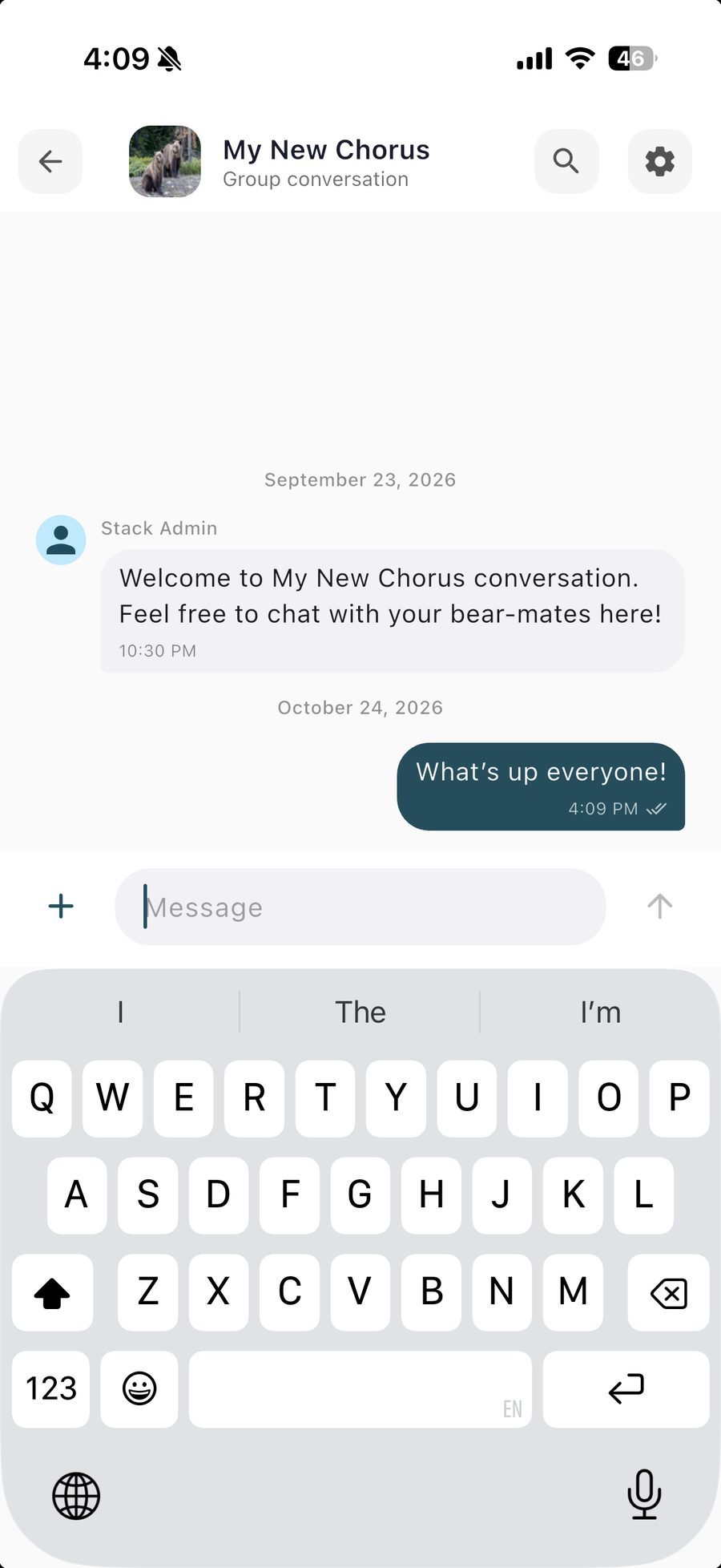
Chat with the whole group, or start a smaller chat with whoever you want. Send photos, files, voice notes, and GIFs, react to a message, reply in a thread, pin what matters, or run a quick poll. Everything stays searchable later.
How to use 4 guides
Open the group chat or start a smaller one
- On the home screen, tap Messages.
- Tap the conversation with your group’s name and photo to talk to everyone.
- For a smaller chat, tap New message, then tap each person you want.
- With two or more people, you can name the chat in Group name (optional).
- Type your first message and tap Send.
A message to one person you already chat with continues that conversation rather than starting a second one.
Send a photo, file, voice note or GIF
- Open the conversation and tap the + beside the message box.
- Tap Photo, then Take photo or Choose from gallery, and tap Send.
- To send a file, tap Photo, then Choose file; it sends as soon as you pick it.
- To send a GIF, tap GIF, pick one, then tap Send.
- To send a voice note, tap Voice message and pick an audio file; it sends straight away.
Voice message sends an audio file already on your device; there is no recorder in the app.
Reply inline or in a thread
- Press and hold the message you want to answer.
- Tap Reply to answer in the conversation, with the original quoted above yours.
- Or tap Start Thread (Reply in Thread once one exists) to keep the exchange off the main chat.
- Type your reply and tap Send.
- To read a thread later, tap the replies in thread count under the message.
Swiping a message to the right always starts an inline reply, never a thread.
Run a quick poll
- Open the conversation and tap the + beside the message box.
- Tap Poll.
- Type your question and at least two options; tap Add option for more, up to ten.
- Set Allow multiple selections, Results visibility and Auto-close after as you like.
- Tap Create poll.
- Singers tap an option to vote; tap Close poll under your poll when you are done.
Only the person who created the poll sees Close poll.
Read your notifications at a glance
- Tap the bell at the top of your groups list.
- Each kind has its own color: blue for messages, orange for announcements, purple for rehearsals and events, green for music, amber for invitations.
- Tap a colored chip above the list to see just that kind.
- On a new invitation, tap Accept or Decline right in the list.
- When a rehearsal has started, tap Check in on its notification.
Tips and reminders are dimmer, so the ones that need you stand out.
Quiet hours and a daily digest
- Tap your picture at the top of your groups list, then tap Notifications.
- Under When notifications arrive, turn on Quiet hours and set From and To. Notifications in those hours still arrive, without a sound.
- Under Daily digest, tick the kinds that can wait, like announcements or calendar changes.
- Set Send it at to when you want the day’s summary.
Messages and rehearsal starts always come right away, and everything is in your inbox as it arrives.
Announcements
When it’s important, it reaches everyone.
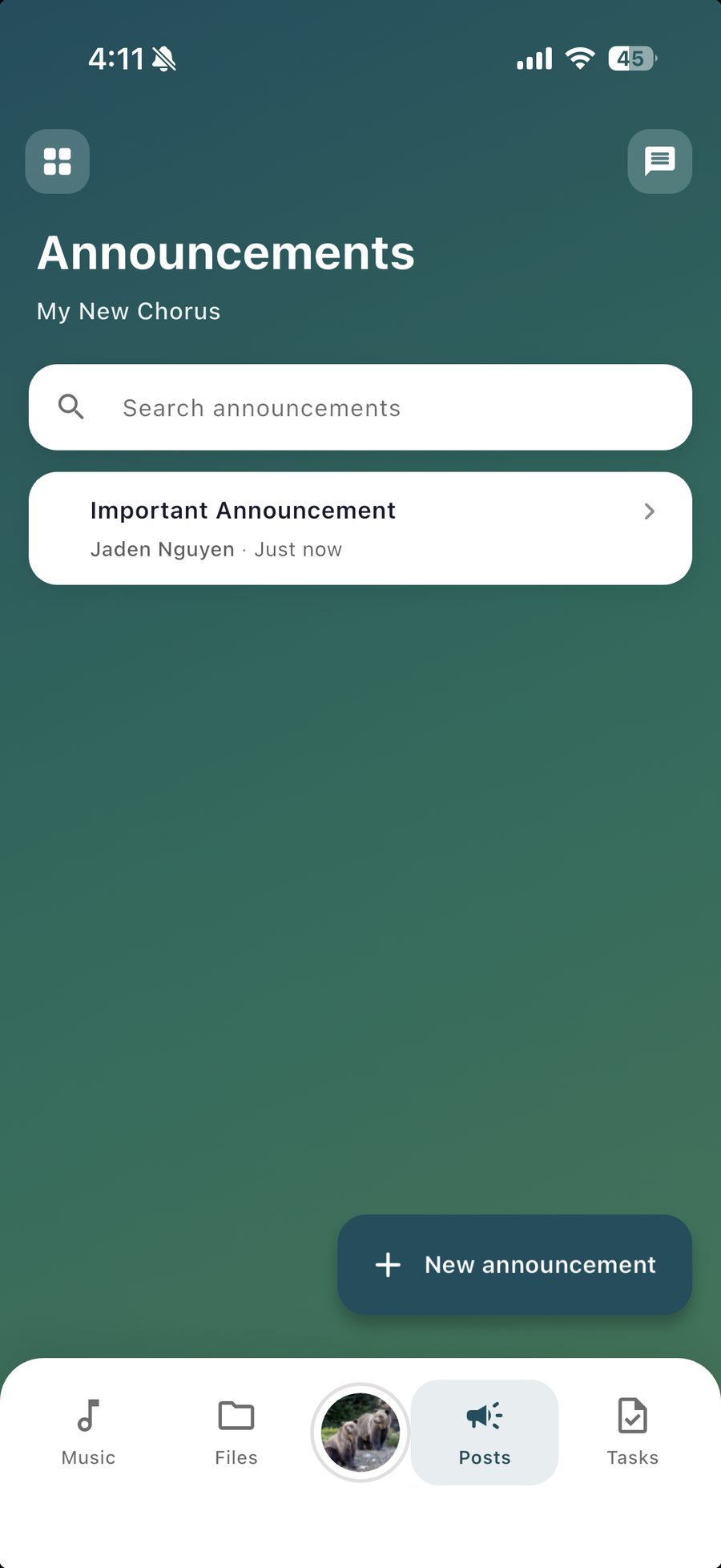
Post an announcement and it goes to every member as a notification, then stays on the group’s Alerts tab for anyone who missed it. Managers and admins post, so nobody has to scroll a chat to find it.
How to use 3 guides
Post an announcement
Managers and above
- Open the group and tap Posts.
- Tap New announcement.
- Type a title, then write the announcement in the box below it.
- Under Audience, leave Everyone, or tap one or more sections.
- Leave Also send by email on, or switch it off for a notification only.
- Tap Post.
Audience appears once voice parts are set up; a section post asks you to confirm with Send.
See who has read it
Managers and above
- Open the group and tap Posts.
- Tap the announcement; its row already shows a Seen by count.
- Tap the Seen by line under the group name.
- Check Not seen yet for anyone who needs a nudge.
Managers only see this on announcements they posted themselves, while admins and owners see it on every post.
Edit or delete an announcement
Managers and above
- Open the group, tap Posts, then tap the announcement.
- Tap More (the three dots) at the top right.
- To change it, tap Edit, make your changes, then tap Save.
- Choose Notify everyone to send a fresh notification, or Save quietly.
- To remove it, tap Delete, then Delete again to confirm.
Managers can only edit or delete their own announcements, while admins and owners can manage any of them.
Calendar and RSVPs
One calendar for rehearsals, call times, and concerts, with RSVPs you can actually see.
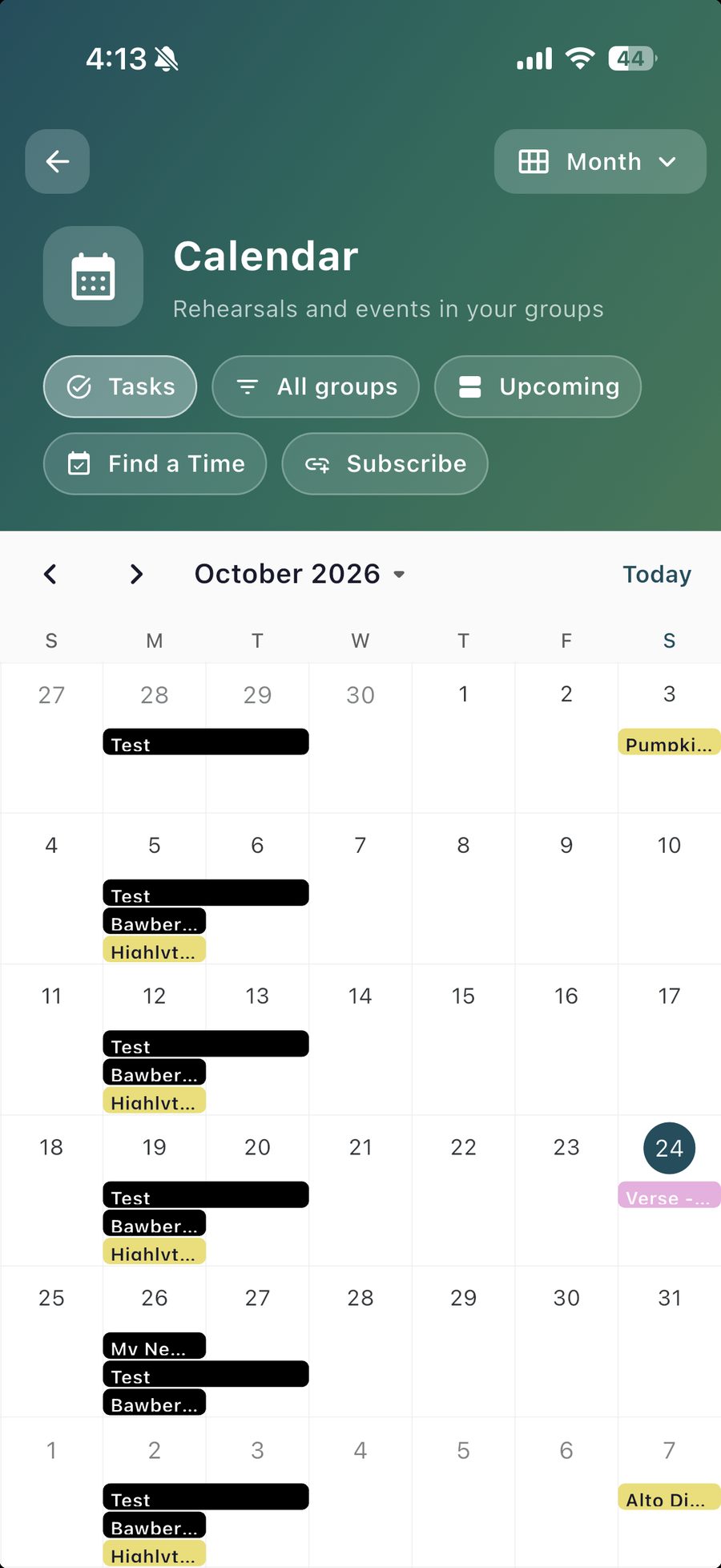
Every group you sing with, on one calendar. Singers answer Going, Maybe, or Can’t go, and the director sees the tally. Set rehearsals to repeat weekly, attach a setlist to a concert, and subscribe from Google Calendar, Apple Calendar, or Outlook so events show up where you already look.
How to use 5 guides
Add a rehearsal or concert
Managers and above
- On the home screen, tap Calendar.
- Tap the day in Month view, then Add event.
- Under Title, say what’s happening, then set Starts and Ends.
- Under Group, tap the group the event belongs to.
- For a weekly rehearsal, tap Repeat and tick its days under On These Days.
- Tap Add event.
In Week or Day view you can skip the menu and tap an empty slot on the day instead.
RSVP, and see who’s coming
- On the home screen, tap Calendar.
- Tap the event on the date you mean; a repeating rehearsal keeps RSVPs per date.
- Under Are you going?, tap Going, Maybe, or Can’t go.
- Tap the line of counts beneath to see who answered, and who is still awaiting a reply.
If you don’t see Are you going?, the event has ended or the director turned RSVPs off for it.
Remind people who haven’t RSVP’d
Managers and above
- Open the event from Calendar, or tap the next event on your group’s home screen.
- Tap Remind 5 people who haven’t replied; the number is however many are still waiting.
- The same button sits under Awaiting reply in the list of who’s coming, and in the event editor under the headcount.
Only the people who haven’t answered get the reminder. An event that has ended offers no button.
Subscribe from Google Calendar, Apple Calendar, or Outlook
- On the home screen, tap Calendar, then Subscribe (or your profile picture, then Calendar sync).
- Tap Enable calendar sync.
- Tap Add, then Google Calendar, or Apple Calendar on an iPhone or iPad.
- For Outlook, tap Copy URL instead and paste it where Outlook subscribes to a calendar from the web.
Google, Apple, and Outlook refresh subscribed calendars on their own schedule, often only every 12 to 24 hours, so a new event can take that long to show up.
Skip one week of a weekly rehearsal
Managers and above
- Open the group, tap the group photo in the center of the bottom bar, then Rehearsal Manager.
- Under Weekly schedule, tap the date you’re skipping. For the very next rehearsal, Skip this date on the card at the top does the same.
- Tap Notify members to tell everyone it’s canceled, or Don’t notify.
The date stays in the row, crossed out and marked Off. For a date further out, tap the rehearsal itself to see its next ten. A skipped date can’t be brought back; add a one-off rehearsal for it instead.
Find a time
Pick a date for the sectional without a forty-message thread.
Send a few dates and a time window to the people you need. Each one paints when they’re free, the app ranks the best overlaps, and you turn the winner into a calendar event with one tap.
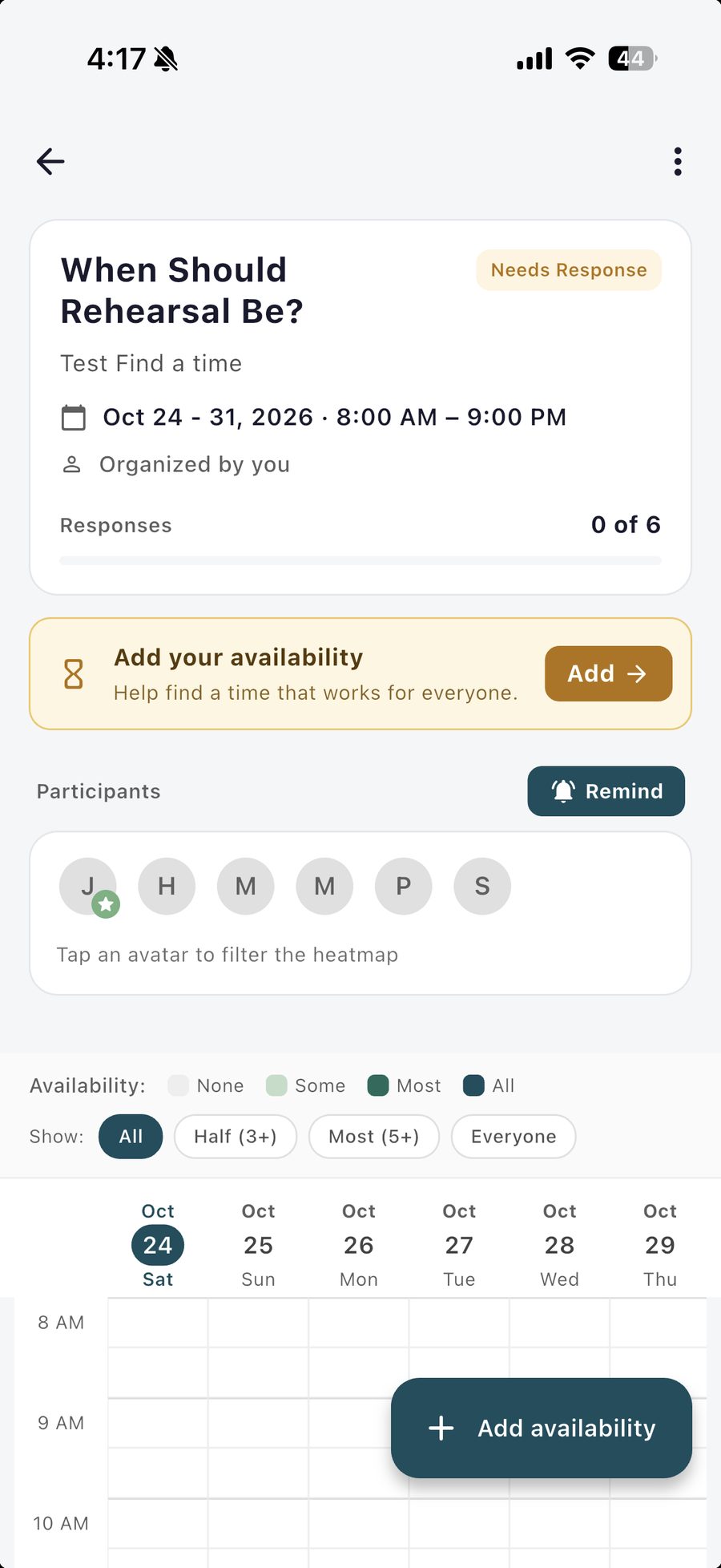
How to use 3 guides
Ask people when they’re free
- On the home screen, tap Calendar, then Find a Time.
- Tap New poll and give the poll a title.
- Under Dates, choose Range, Dates or Weekly and pick the days to offer.
- Under Time, set From and To, and the meeting Duration.
- Tap Add people to pick singers by name, or Add group to ask a whole group.
- Tap Create poll.
Add group only offers groups where you are an owner or admin; otherwise add people one at a time.
Paint when you’re free
- On the home screen, tap Calendar, then Find a Time.
- Open the poll under Needs Your Response.
- Tap Add availability.
- Tap Edit, then drag across every time you can make.
- Tap Save.
To change your answer later, open the poll again and tap Edit availability.
Pick the winner and put it on the calendar
- Open the poll; under Participants, tap Remind to nudge anyone who hasn’t answered.
- Look under Best times for the ranked overlaps; tap an avatar to narrow to the people you need.
- Tap a time to see who is free and who isn’t.
- Tap Finalize and choose the winning time.
- Leave Add to calendar ticked, pick a group under Select group for event, then tap Done.
Only the organizer sees Finalize, and Select group for event offers only groups where you are a manager or above.
Free for anyone
Practice anywhere.
Three tools for anyone who sings, whether or not your group uses The Score Stack.
Free practice tools
A pitch pipe, metronome and tuner that work in any browser, free.
No account and nothing to install. The pitch pipe gives any of the twelve starting notes in the octave you pick. The metronome keeps time with tap tempo, compound meters and subdivisions. The tuner listens while you sing and shows how sharp or flat you are, and it records nothing.
All three are at thescorestack.com/tools. In the app, a metronome also sits under your sheet music.